In the world of web development and content creation, time is the only currency that truly matters. Whether you are a freelance developer managing a dozen client sites or a solo blogger churning out daily content, the “interface friction” of the WordPress dashboard can be a silent productivity killer.
For years, navigating WordPress meant a repetitive cycle of clicking, waiting for page loads, scrolling through sidebars, and hunting for nested settings. But with the introduction of the WordPress Command Palette (introduced in version 6.3 and refined in 6.4, 6.5, and 6.6+), the paradigm has shifted.
If you aren’t using the Command Palette, you’re essentially driving a Ferrari in first gear. This guide will teach you how to shift up, bypass the menus, and master the tool that makes “2x faster workflows” a reality.
What Exactly is the WordPress Command Palette?
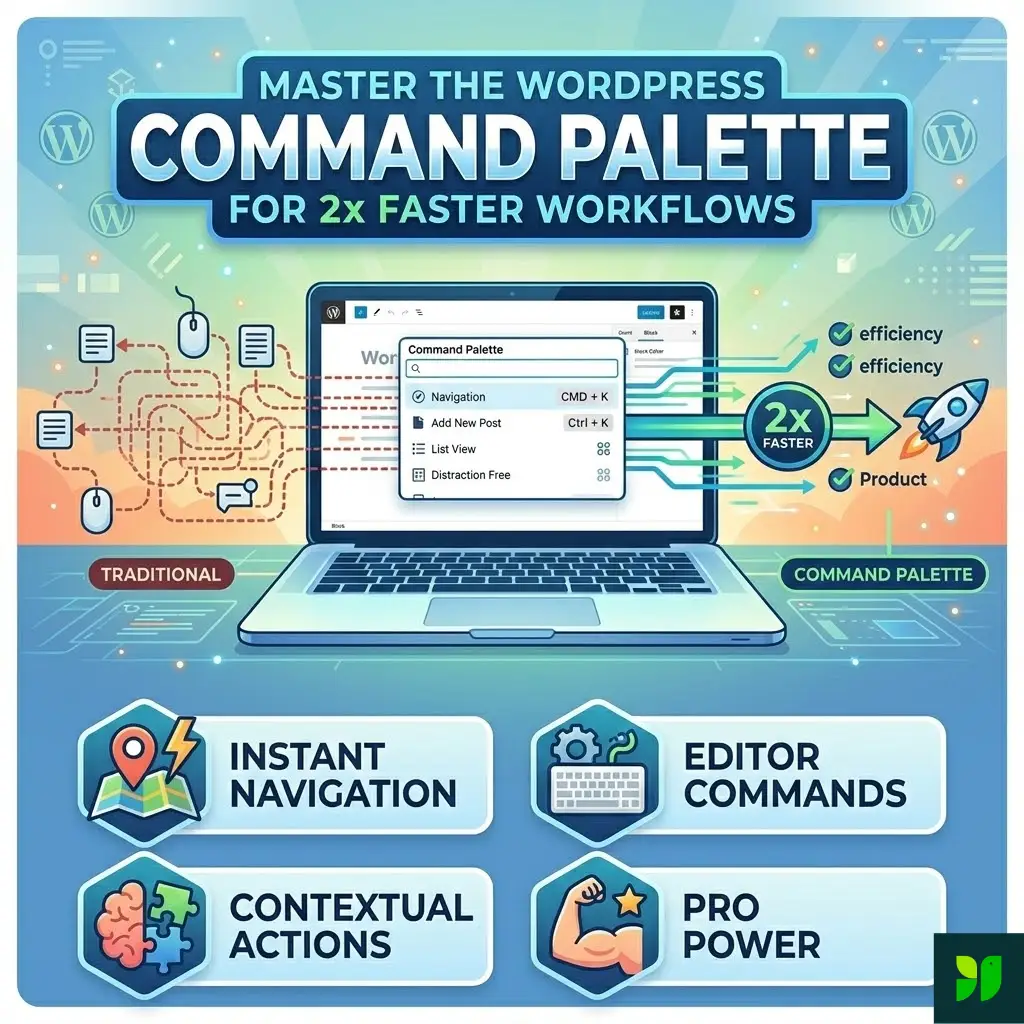
The Command Palette is a centralized, searchable command center accessible from almost anywhere in the WordPress Editor. If you’ve ever used Spotlight on a Mac, PowerToys Run on Windows, or the Command Palette in VS Code, you already understand the philosophy behind it: Keep your hands on the keyboard.
By pressing a simple key combination, a clean, minimalist search bar appears. From here, you can perform three primary types of actions:
Navigation: Jumping between pages, posts, templates, and patterns.
Execution: Toggling editor settings (like Distraction-Free mode) or performing block actions (like duplicating or deleting).
Creation: Quickly initiating new posts or pages without returning to the main dashboard.
Why It Matters for SEO and User Experience
From an SEO standpoint, faster workflows mean more time for high-quality content production and technical optimization. For agencies, it means higher profit margins per project. The Command Palette isn’t just a “neat trick”—it’s a professional-grade tool designed to reduce cognitive load.
How to Access the Command Center
Before we dive into the advanced workflows, let’s ensure you have the basics down.
The Keyboard Shortcuts
The heart of the Command Palette is the shortcut. It is designed to be universal across the WordPress ecosystem:
Mac:
Command + KWindows/Linux:
Ctrl + K
The Visual Entry Points
While the keyboard is faster, there are visual cues for when you’re stuck:
In the Site Editor: Look at the top-center “Title” area. Clicking the name of the template or page opens the palette.
In the Sidebar: Often, a magnifying glass icon in the Site Editor’s “Browse” mode sidebar will trigger the same interface.
Mastering Navigation: The End of the “Back to Dashboard” Loop
The most significant time-waster in WordPress is the “Back-and-Forth.” You’re editing a page, but you realize you need to tweak the Header template. Traditionally, you’d save, exit to the dashboard, click Appearance, click Editor, click Patterns, click Header, and finally start editing.
With the Command Palette, that 30-second process becomes a 2-second search.
Jumping to Specific Content
Simply trigger the palette (Cmd+K) and type the name of your target:
Pages: Type “About” to jump to your About Us page.
Posts: Type the title of your latest draft to resume editing.
Templates: Type “Single” to find your
Single Posttemplate or “404” to edit your error page.Template Parts: Type “Footer” to jump straight into your site’s global footer.
Advanced Navigation Logic
The Command Palette uses “fuzzy search.” This means you don’t have to be perfect. Typing “nav” will bring up your Navigation menus; typing “styles” will bring up the Global Styles panel.
Workflow Acceleration: Editor Commands
The true power of the Command Palette lies in its ability to manipulate the editor environment itself. Here is a breakdown of the commands that will save you hundreds of clicks per day.
Visual Toggles
When you are in the “zone,” you don’t want to hunt for icons. Use the palette to:
Toggle List View: Essential for managing complex block layouts. Just type “List” and hit Enter.
Distraction-Free Mode: Type “Distract” to hide all sidebars and toolbars, leaving just you and your content.
Spotlight Mode: Type “Spotlight” to dim every block except the one you’re currently working on.
Top Toolbar: If you prefer your block settings at the top of the screen rather than floating, type “Top” to toggle this view.
Block Actions
If you have a block selected, the Command Palette becomes context-aware. It knows what you are doing.
Duplicate/Remove: Instead of clicking the three-dot menu,
Cmd+K> “Dup” > Enter.Add Before/After: Quickly insert space for new content.
Group/Ungroup: Manage your layout structure without leaving the keyboard.
Case Study: The “Productivity Sprint” Workflow
Let’s look at a real-world scenario. You are building a landing page for a client.
The Old Way (The “Clicker” Workflow):
- Navigate to Pages > Add New. (5 seconds)
- Write content.
- Realize the Header needs a new button. (10 seconds to navigate to the Header Template)
- Edit Header.
- Navigate back to the Page. (10 seconds)
- Open List View to see the hierarchy. (3 seconds)
- Check the “Style” of the site. (5 seconds)
Total Nav Time: ~33 seconds of pure clicking.
The New Way (The Command Palette Workflow):
Cmd+K> “New Page” (1 second)Write content.
Cmd+K> “Header” (1 second)Edit Header.
Cmd+K> [Page Name] (1 second)Cmd+K> “List View” (0.5 seconds)Cmd+K> “Styles” (1 second)Total Nav Time: ~5.5 seconds.
Over the course of a 4-hour design session, you aren’t just saving minutes; you are preventing the “mental fatigue” that comes from navigation loops.
Extending the Palette (For Developers)
One of the reasons the Command Palette is so revolutionary is its extensibility API. If you are a plugin or theme developer, you can register your own commands.
This allows you to provide “shortcuts” for your users. For example, an SEO plugin could add a command for “Open SEO Audit,” or an E-commerce plugin could add “View Recent Orders.”
How to Register a Command (The Technical Logic)
While we won’t write the full code here, the process involves using the wp.commands package. You define:
Name: The unique identifier.
Label: What the user sees in the palette.
Icon: To help with visual scanning.
Callback: The function that runs when the command is selected.
Imagine the value you provide to clients when you give them a custom “Help” command that opens their specific documentation directly from the editor!
The “Command Palette” vs. “Slash Commands” (/)
A common point of confusion is when to use Cmd+K vs. the / (Slash) command.
Use
/(Slash Commands) when you want to add something onto the page. (e.g.,/image,/column,/heading). This is for content creation.Use
Cmd+K(Command Palette) when you want to go somewhere or change how the editor works. (e.g., “Go to Footer,” “Toggle List View”). This is for site management.
Using both in tandem is the “secret sauce” of WordPress power users.
Troubleshooting and Limitations
The Command Palette is still evolving. Here are a few things to keep in mind:
Context Sensitivity: Some commands only appear when you are in the “Site Editor” (the full-site editing environment) rather than the standard “Post Editor.” If you can’t find a command, check which mode you are in.
Plugin Conflicts: Occasionally, a plugin might hijack the
Cmd+Kshortcut (though this is rare). Ensure your browser or other extensions aren’t using the same hotkey.Experimental Features: Some advanced palette features require you to be on the latest version of WordPress or have the Gutenberg plugin installed for early access.
Summary: Your 30-Day Mastery Plan
You won’t become a master overnight. It takes muscle memory. Here is a 4-week plan to double your speed:
Week 1: Focus exclusively on Navigation. Only use
Cmd+Kto move between pages and templates.Week 2: Incorporate UI Toggles. Force yourself to use the palette to open the List View and Styles.
Week 3: Start using Contextual Actions. Use the palette to duplicate, move, or delete blocks.
Week 4: Combine Slash Commands and the Palette. Try to build a full page without ever touching your mouse.
Final Thoughts
The WordPress Command Palette represents a move toward a more “professional” web. It acknowledges that the people building the web—the designers, developers, and writers—need tools that respect their time and focus.
By mastering these shortcuts, you aren’t just clicking buttons faster; you are removing the barriers between your ideas and your website.
Ready to try it out? Log into your site, hit Cmd + K, and type “Home.” Welcome to the future of WordPress.