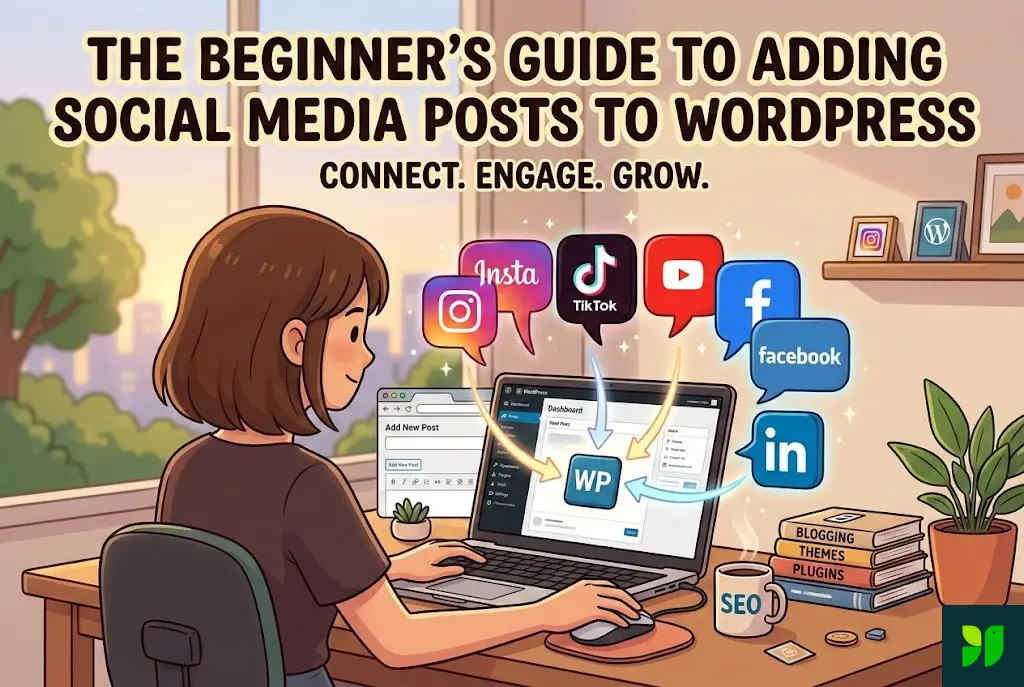
In the current digital era, your website is your home base, but your social media profiles are your digital storefronts. If these two worlds don’t talk to each other, you’re leaving engagement, trust, and revenue on the table. Integrating social media content into your WordPress site is no longer just a fancy design choice; it is a fundamental part of a modern content strategy.
Whether you are a hobby blogger, a small business owner, or a corporate marketer, this guide will walk you through every possible way to bridge the gap between your social feeds and your WordPress site.
Why Social Media Integration is an SEO Power Move
Before we get into the “how,” let’s talk about the “why” from an SEO and marketing perspective. Many beginners think social media is just for “likes,” but its impact on your website’s performance is profound.
Social Proof and Conversion Rates
When a new visitor lands on your site, they are often skeptical. By embedding real-time social media posts—especially those from customers or fans—you provide social proof. Seeing a “real” tweet or a tagged Instagram photo from a customer acts as a digital testimonial that is far more believable than a text quote you typed yourself.
Increasing “Dwell Time”
Google tracks how long users stay on your page (Dwell Time). If you embed a high-quality YouTube video or a scrollable Instagram carousel, users spend more time on your page interacting with that content. This signals to search engines that your page is valuable, which can indirectly boost your rankings.
Content Freshness
Search engine crawlers love updated content. If your blog post is two years old but contains a live, auto-updating Instagram feed, the page technically has “fresh” content every time you post a new photo. This helps keep your pages relevant in the eyes of the algorithm.
The “No-Code” Method: Understanding WordPress oEmbed
The easiest way to add social media to WordPress is through oEmbed. This is a protocol that allows WordPress to ask a service (like YouTube) for the HTML needed to display a video or post based just on its URL.
How to Use oEmbed for Single Posts
Navigate to the Post: Go to the specific post on Twitter (X), YouTube, or Pinterest.
Copy the URL: Copy the link from the address bar (e.g.,
https://youtube.com/watch?v=12345).Paste and Wait: In your WordPress Block Editor (Gutenberg), simply paste the link on a blank line. WordPress will reach out to the platform and “expand” the link into the actual post.
The Problem with Facebook and Instagram oEmbeds
In late 2020, Facebook (Meta) changed its API. Now, standard WordPress installations cannot “oEmbed” Facebook or Instagram posts without a developer account or a specialized plugin. If you try to paste a Facebook link and it stays as a plain blue link, don’t panic—it’s not you, it’s the API. We will cover how to fix this in the “Plugin” section.
Using the WordPress Block Editor (Gutenberg)
The Block Editor has made social integration significantly easier. You no longer have to mess with “iframes” or messy HTML code.
Platform-Specific Blocks
When you click the (+) button in your editor, you can search for dedicated blocks:
YouTube Block: Best for videos. It allows you to set the aspect ratio so the video looks good on mobile.
TikTok Block: Perfect for the vertical video trend. It embeds the video with the music and creator credits intact.
Twitter (X) Block: Embeds a single post. This is great for citing a source or showing a public conversation.
Pinterest Block: You can embed a single Pin or an entire Pinterest board.
When to Use Blocks vs. Feeds
Use a Block when you want to reference a specific piece of content to support a point in your article. Use a Feed (via plugin) when you want to show your latest activity at the bottom of a page or in a sidebar.
The Power User Method: Dynamic Social Media Plugins
If you want a “set it and forget it” solution where your latest posts show up automatically, you need a plugin.
Why Use a Plugin instead of Manual Embedding?
Automation: You don’t have to manually update your site every time you post on Instagram.
Customization: You can change the layout (grid, carousel, masonry) to match your brand colors.
Performance: Good plugins cache the images so they don’t slow down your site load speed.
Top Plugin Recommendations for 2026
1. Smash Balloon (The Industry Leader)
Smash Balloon is actually a suite of four plugins:
Instagram Feed Pro: Displays photos, stories, and shoppable feeds.
Custom Facebook Feed: Shows posts, events, and even Facebook group content.
Twitter Feed Pro: Displays mentions, hashtags, or your home timeline.
YouTube Feed Pro: Embeds entire channels or playlists.
2. Social Feed Gallery
This is a fantastic “all-in-one” lightweight option. It’s particularly popular for creating “Link in Bio” style pages directly on your own WordPress site, saving you from paying for third-party services like Linktree.
3. Feedzy RSS Feeds
While not a “social” plugin in the traditional sense, Feedzy is powerful for aggregating content. If you want to pull in posts from various blogs or platforms that offer an RSS feed, this is the tool for the job.
Step-by-Step: Adding an Instagram Gallery to Your Homepage
Let’s walk through the most common request: Adding a beautiful Instagram grid to your WordPress footer or homepage.
Step 1: Install Smash Balloon Social Photo Feed
Go to Plugins > Add New, search for “Smash Balloon,” and click install.
Step 2: The Authentication Dance
Once activated, go to the “Instagram Feed” tab in your dashboard. You’ll see a big blue button: “Connect an Instagram Account.”
Personal Accounts: Best for hobbyists.
Business/Creator Accounts: Best for brands. This allows the plugin to pull in more data, like “likes” and “comments” counts.
Step 3: Designing the Feed
In the “Customize” tab, you can decide:
Number of Photos: On a homepage, 6 to 10 photos usually looks best.
Columns: 3 columns for desktop, 1 or 2 for mobile.
Button Styles: Customize the “Load More” and “Follow” buttons to match your site’s hex color codes.
Step 4: Displaying the Feed
You have two choices:
Shortcode: Copy
[instagram-feed]and paste it into any “Shortcode” block or Widget.Gutenberg Block: Simply add the “Instagram Feed” block in the editor.
How to Add Social Sharing Buttons (The “Other” Integration)
Adding your posts to your site is half the battle. The other half is making it easy for others to share your site content to their social media.
Why “Shared Counts” Matter
Displaying the number of times an article has been shared creates fame by association. If a visitor sees a post has been shared 500 times, they are more likely to read it and share it themselves.
Recommended Plugins for Sharing:
Grow by Mediavine: Highly optimized for speed. It offers “floating” share buttons that follow the user as they scroll.
Shared Counts: A developer-friendly, privacy-focused plugin that doesn’t track users.
Novashare: A premium, lightweight plugin designed specifically for performance-obsessed WordPress users.
Performance & Optimization: Keeping Your Site Fast
One major mistake beginners make is adding too many social widgets. Each social media embed requires your site to talk to another server (like Instagram’s or TikTok’s). If you have 20 embeds, your site will load like molasses.
Tips for a Fast “Social” Site:
Lazy Loading: Ensure your plugin supports “lazy loading.” This means the social media posts only load when the user scrolls down to see them.
Caching: Use a plugin that stores the social media data in your WordPress database so it doesn’t have to fetch it from the API every single time.
Use a CDN: A Content Delivery Network like Cloudflare can help serve the images from your social feed faster.
Limit “Live” Feeds: Instead of having a live feed on every single page, keep it on your “About” or “Contact” page and use static images elsewhere.
Image Optimization: If your plugin pulls in high-res images, make sure you have an optimization plugin like Imagify or ShortPixel to compress them.
Legal and Privacy Considerations (GDPR)
In 2026, privacy is a top priority. When you embed a post from a platform like Facebook, that platform can track the user who views it.
The GDPR “Two-Click” Solution
In some regions, you cannot load a social media embed until the user gives consent. Many WordPress cookie consent plugins (like Complianz or CookieYes) can “block” social embeds until the user clicks “Accept.”
If you have a global audience, it is a best practice to mention in your Privacy Policy that you use third-party embeds that may collect user data.
Creative Ways to Use Social Content in WordPress
Don’t just stick to a grid in the footer! Here are some creative ways to use social media integration:
Shoppable Feeds: If you have an e-commerce store (WooCommerce), you can link your Instagram photos directly to your products.
Social Walls for Events: If you’re running a live event or webinar, create a page with a “Social Wall” that pulls in a specific hashtag (e.g., #MyWedding2026 or #TechConf).
Review Pages: Instead of a “Testimonials” page, create a “What They’re Saying” page and embed positive tweets and Facebook posts from your customers.
Troubleshooting common “Broken” Embeds
Sometimes, you’ll open your site and see a blank space where your feed should be. Here is the quick fix checklist:
Refresh the Access Token: Social media platforms expire their security tokens every 60–90 days. Most plugins will email you, but you might need to go into settings and click “Reconnect.”
Plugin Conflicts: Sometimes a security plugin (like Wordfence) might block the API call. Try disabling your security plugin for a minute to see if the feed returns.
JavaScript Errors: If you have too many “Optimization” or “Minification” plugins, they might break the code that makes the feed work. Exclude your social plugin from your JS minification settings.
Conclusion: Bridging the Gap
Integrating social media with WordPress is about more than just aesthetics; it’s about building a cohesive digital ecosystem. By following the steps in this guide, you’ve learned how to:
Use oEmbed for quick, one-off shares.
Utilize Gutenberg blocks for specific content references.
Deploy Plugins for beautiful, automated galleries.
Optimize for speed and SEO to ensure your site stays at the top of the rankings.
The most important thing is to start small. You don’t need a feed for every platform. Pick the one where your audience lives, embed it on your site, and watch your engagement grow!