In the digital ecosystem of 2026, a WordPress website is no longer just a collection of pages; it is a complex application that demands high-performance infrastructure. At the heart of this infrastructure lies PHP.
If you’ve been ignoring those “PHP Update Required” notifications in your WordPress dashboard, you aren’t just procrastinating on a minor chore—you are actively throttling your site’s performance and leaving the virtual back door unlocked. This guide is the definitive resource for understanding, preparing for, and executing a PHP update that will make your site faster, more secure, and ready for the future.
The State of PHP in 2026: Why This Matters Now
PHP (Hypertext Preprocessor) has undergone a massive evolution. In the early 2020s, we saw the transition to PHP 8.0, which introduced JIT (Just-In-Time) compilation. By 2026, we are looking at PHP 8.3 and 8.4 as the stable standards, with PHP 9.0 on the horizon.
Speed as a Currency
In 2026, user attention spans have dropped even further. Core Web Vitals are the primary metric by which Google judges your “page experience.” Modern PHP versions process code exponentially faster than older versions. For example, moving from PHP 7.4 to 8.3 can reduce server execution time by up to 40%. This isn’t just a technical stat; it translates to lower bounce rates and higher conversion tabs.
The Security Debt
Running an outdated PHP version is what developers call “Technical Debt.” Older versions like 7.x or even early 8.0 no longer receive security patches from the PHP development team. Hackers specifically target sites running these versions because they know exactly which vulnerabilities haven’t been patched.
Phase One: The “Immunity” Audit (Preparation)
Updating PHP without checking your site’s “health” first is like upgrading a car engine without checking if the transmission can handle the power. You might end up with a “White Screen of Death” (WSoD).
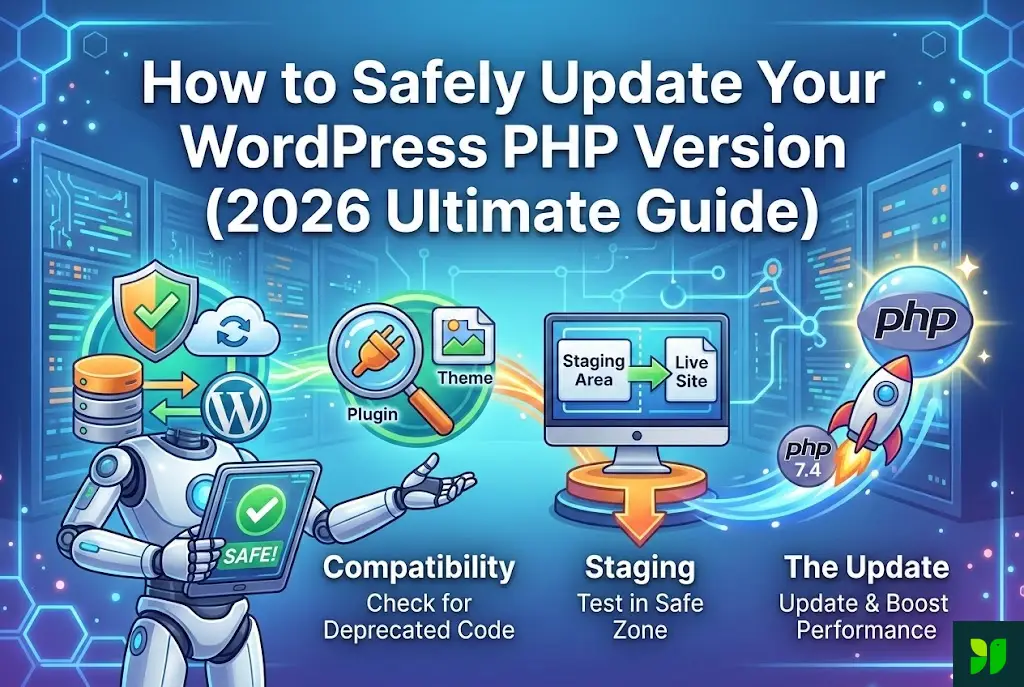
Step 1: The Ultimate Backup Strategy
Do not rely on your host’s “weekly backup.” You need a point-in-time snapshot right before the update.
Database: Export your SQL file.
Files: Ensure your
wp-contentfolder is backed up.Verification: Check that your backup file isn’t 0kb. It happens more often than you’d think.
Step 2: The Plugin & Theme Purge
In 2026, “plugin bloat” is a major cause of PHP incompatibility.
Deactivate and Delete: If you haven’t used a plugin in 3 months, delete it.
Check “Last Updated”: If a plugin hasn’t been updated by its developer in over a year, it likely contains deprecated PHP functions that will break on PHP 8.3+.
The PHP Compatibility Checker: Use modern tools like the Query Monitor plugin or specialized compatibility scanners to see if any active code triggers “Warnings” or “Deprecated” notices.
Step 3: Staging – Your Secret Weapon
If your site generates revenue, never update PHP on your live site first.
Most premium hosts (Kinsta, WPEngine, SiteGround) offer one-click staging.
Create the staging site.
Update the PHP there.
If it breaks, your customers never see it.
Phase Two: The Technical Deep Dive (The Update Process)
The method for updating PHP depends entirely on your hosting environment. We will cover the three most common scenarios in 2026.
Scenario A: Managed WordPress Hosting (The Easy Way)
Managed hosts have integrated PHP management into their custom dashboards.
Log in to your hosting portal (e.g., MyKinsta or SiteGround Site Tools).
Navigate to the Dev Tools or Server tab.
Look for PHP Manager.
You will see a dropdown list. Select PHP 8.3 (Stable).
The server will usually take 30–60 seconds to restart the PHP engine.
Scenario B: cPanel & Shared Hosting (The Standard Way)
Despite the rise of managed hosting, cPanel remains a giant in 2026.
Log in to your cPanel.
In the search bar, type “MultiPHP Manager.”
Select the checkboxes for the domains you wish to update.
In the top right, choose the PHP version from the dropdown.
Click Apply.
Note: If you don’t see the latest version, your host hasn’t installed it yet. You may need to open a support ticket.
Scenario C: Cloud VPS (The Manual Way)
For the DIY crowd using DigitalOcean, Vultr, or AWS, you’ll be using the command line. This is where you have the most control but the highest risk.
Assuming you are on Ubuntu 24.04/26.04:
Add the repository:
sudo add-apt-repository ppa:ondrej/phpUpdate:
sudo apt-get updateInstall:
sudo apt-get install php8.3-fpm php8.3-mysql php8.3-xml...(ensure all modules are included).Update your Nginx/Apache config files to point to the new
php8.3-fpm.sock.Restart the service:
sudo systemctl restart nginx.
Phase Three: Post-Update Verification & Optimization
Congratulations, you’ve updated! But the job isn’t done. Now we must ensure the “plumbing” is working.
1. The Critical Path Test
Check these three things immediately:
The Login Page: Can you still access
/wp-login.php?The REST API: Go to Tools > Site Health. If the REST API is broken, your block editor (Gutenberg) won’t work.
The SSL Handshake: Occasionally, server updates can interfere with how your site communicates with SSL certificates. Ensure that green padlock is still there.
2. Error Log Monitoring
Even if the site looks fine, there might be “Silent Errors.”
Access your site via FTP/SFTP and look for a file called error_log in the root directory. If you see thousands of lines appearing suddenly, a plugin is struggling with the new PHP version.
3. Object Caching (Redis/Memcached)
In 2026, PHP performance is best paired with Object Caching. When you update PHP, ensure your caching module (like Redis) is also re-connected to the new PHP version. This is often a toggle in your hosting panel.
Troubleshooting the “White Screen of Death” (WSoD)
If you update and your site disappears into a void of white, don’t panic. This is almost always a “Fatal Error” caused by an incompatible plugin.
How to Fix WSoD Without Dashboard Access:
Revert: Quickly switch back to the old PHP version in your hosting panel to bring the site back.
Debug Mode: Open your
wp-config.phpfile via FTP.Find
define( 'WP_DEBUG', false );and change it totrue.Reload your site. Instead of a white screen, you will see a specific error message pointing to a file path.
Example:
/wp-content/plugins/old-slider/functions.php on line 42The Fix: You now know “Old Slider” is the problem. Delete that plugin folder via FTP, and you can safely move back to the new PHP version.
PHP 9.0 and the Future of WordPress
As we look toward the end of 2026, PHP 9.0 is the hot topic. PHP 9 is expected to remove many features that have been “deprecated” (marked for deletion) throughout the PHP 8.x cycle.
To stay ahead:
Switch to “Strict Typing”: If you are a developer, start using strict types in your code.
Embrace Native Functions: Stop using old libraries for things PHP now does natively (like JSON handling).
Monitor WordPress Core: The WordPress core team is working tirelessly to ensure “Full Compatibility,” but “Beta Compatibility” is usually the status for the first few months of a new PHP major release.
The Environmental Impact: An Often Overlooked Benefit
In 2026, “Green Hosting” is a major trend. Because newer PHP versions are more efficient, they require less CPU power to process the same amount of data.
By updating your PHP version, you are literally reducing the carbon footprint of your server. Thousands of sites updating to PHP 8.4 can result in a measurable decrease in data center energy consumption globally. It’s a win for your site and the planet.
Summary Checklist
| Task | Frequency | Priority |
| Check PHP Version | Every 6 Months | High |
| Full Site Backup | Before Every Update | Critical |
| Update Plugins/Themes | Weekly | High |
| Review Error Logs | Monthly | Medium |
Conclusion
Updating your WordPress PHP version isn’t just a technical necessity; it’s a commitment to your site’s health, your users’ security, and your business’s growth. By following this guide, you’ve moved from a legacy environment into the high-speed lane of 2026 web standards.
The web moves fast, but with a modern PHP version under the hood, your WordPress site is ready to keep pace.