In the hyper-competitive digital landscape of 2026, a “responsive” website is no longer the gold standard—it’s the bare minimum. With mobile devices accounting for over 70% of global internet traffic, users have zero patience for sluggish loading screens or “Page Unresponsive” errors caused by spotty 5G connections.
Imagine your WordPress site loading in under a second, working perfectly offline, and residing on your user’s home screen with its own icon—all without the friction of an app store download. Converting your WordPress site into a Progressive Web App (PWA) is arguably the most effective way to skyrocket your mobile performance and SEO rankings simultaneously.
In this comprehensive guide, we’ll explore the “What, Why, and How” of WordPress PWAs, providing a deep dive into turning your site into a high-performance machine.
What Exactly is a PWA? (The 2026 Definition)
A Progressive Web App is a hybrid between a traditional website and a native mobile app. It uses modern web capabilities to deliver an app-like experience directly through the browser.
The magic of a PWA lies in its three technical pillars:
Service Workers: These are scripts that run in the background, independent of your web page. They act as a proxy between the browser and the network. They are responsible for the “magic” of offline mode and push notifications.
Web App Manifest: A simple JSON file that tells the browser how your “app” should look on the home screen. It controls your icons, the theme colors of the browser address bar, and the splash screen that appearing while the app initializes.
HTTPS: A mandatory secure connection. Because Service Workers can intercept network requests, browsers require a secure connection to ensure that no one is “man-in-the-middle” attacking your site.
The “Why” – Beyond Just Speed
While speed is the headline, the benefits of a PWA for a WordPress site owner in 2026 are multifaceted.
1. The 3-Second Rule and SEO
By 2026, Google’s mobile-first index has become even more ruthless. If your site takes longer than three seconds to load on a mid-range Android device, your probability of a bounce increases by over 32%. PWAs utilize Service Workers to cache key assets. This means that on a return visit, your site loads almost instantly because it’s pulling data from the device’s local cache rather than a remote server in another country.
2. Offline Resilience (The “Dinosaur” Killer)
We’ve all seen the “No Internet” dinosaur. A PWA eliminates this. By caching your most important pages, users can still browse your content, read your latest blog posts, or view their shopping cart while in a subway tunnel or an elevator. For an e-commerce store, this means a user can continue reviewing their cart even if their signal drops, leading to higher conversion rates once they reconnect.
3. App-Store Independence
Native apps are expensive to build and maintain (separate iOS and Android teams). They also require users to go through the friction of searching an app store, entering a password, and waiting for a download. A PWA allows you to bypass the “middleman.” Users simply see an “Add to Home Screen” prompt, and your site is installed.
Phase 1 – Preparation (The Prerequisites)
Before you flip the switch, you need to ensure your foundation is solid. You cannot build a high-performance PWA on a crumbling infrastructure.
1. Mandatory HTTPS
Service Workers are powerful; they can intercept network requests and modify them. Because of this, browsers require a secure HTTPS connection to run them. If your site is still on HTTP, you must install an SSL certificate immediately. Most hosts now offer free Let’s Encrypt certificates.
2. Mobile-Friendly Theme
A PWA doesn’t fix a bad UI. Ensure your WordPress theme is truly responsive. In 2026, “Device-Aware” themes that adapt their payload based on the user’s CPU and memory are the industry standard.
Phase 2 – Converting WordPress via Plugins (The Easy Way)
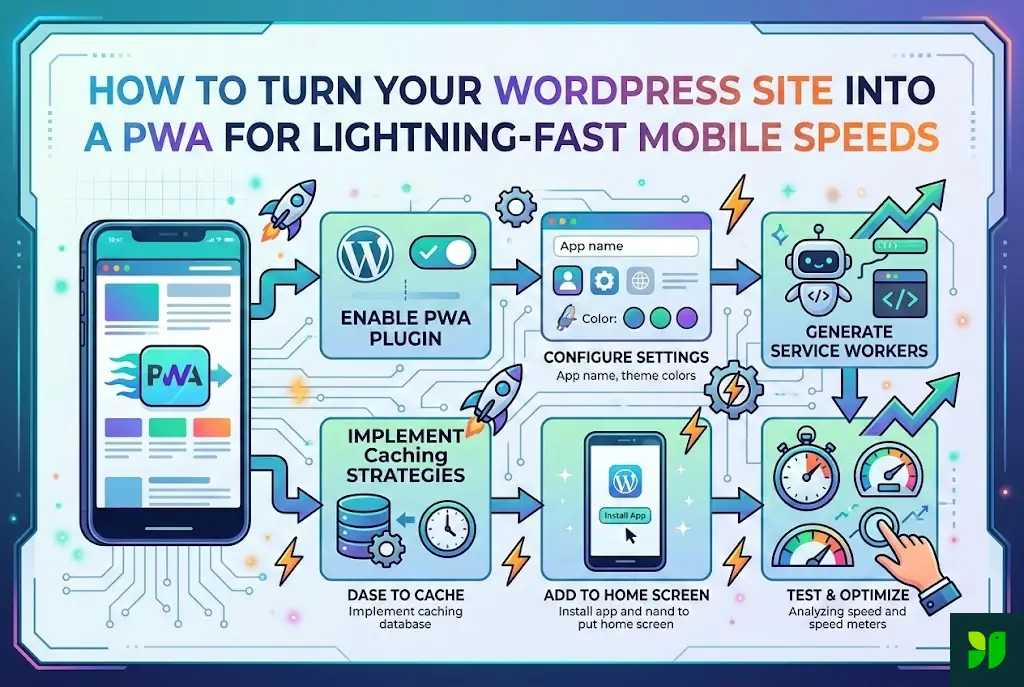
For 90% of WordPress users, a dedicated PWA plugin is the most efficient route. These plugins handle the complex JavaScript generation for Service Workers and the JSON formatting for the Manifest.
Top PWA Plugins for 2026:
SuperPWA: The gold standard for simplicity. It’s a “set it and forget it” solution that generates the manifest and service worker automatically.
PWA for WP & AMP: Best for those already using AMP (Accelerated Mobile Pages). It offers deep integration and advanced caching strategies.
Progressier: A premium tool that offers “Universal Installation,” helping you navigate the tricky waters of iOS PWA support (which is notoriously more difficult than Android).
Step-by-Step Plugin Setup (Using SuperPWA):
Install & Activate: Search for “SuperPWA” in your WordPress dashboard.
Configure Manifest:
App Name: The full name of your site.
Short Name: The name that appears under the icon (keep it under 12 characters).
Icons: Upload a 192x192px and a 512x512px PNG. These must be square.
Background Color: The color of the splash screen while the app loads.
Enable Offline Support: Choose which page should be shown when a user has no connection (usually a custom “Offline” page or your homepage).
Save Settings: The plugin will now generate your
manifest.jsonandsw.js(Service Worker) files and place them in your root directory.
Phase 3 – The Manual Method (For Developers)
If you want absolute control over your caching logic—for instance, using a “Network-First” strategy for news and a “Cache-First” strategy for images—you’ll want to do this manually.
1. Create the manifest.json
Create a file named manifest.json in your WordPress root folder:
JSON
{
  "name": "My Lightning Fast Site",
  "short_name": "MySite",
  "start_url": "/",
  "display": "standalone",
  "background_color": "#ffffff",
  "theme_color": "#007cba",
  "icons": [
    {
      "src": "/icon-192.png",
      "sizes": "192x192",
      "type": "image/png"
    }
  ]
}
2. The Service Worker (sw.js)
This script tells the browser what to cache. A basic “Stale-While-Revalidate” script is often best for blogs:
JavaScript
const CACHE_NAME = 'wp-pwa-v1';
const urlsToCache = ['/', '/style.css', '/offline.html'];

self.addEventListener('install', event => {
  event.waitUntil(
    caches.open(CACHE_NAME).then(cache => cache.addAll(urlsToCache))
  );
});

self.addEventListener('fetch', event => {
  event.respondWith(
    caches.match(event.request).then(response => response || fetch(event.request))
  );
});
Optimizing for 2026 Core Web Vitals
A PWA is only as fast as its underlying performance. To achieve “Lightning-Fast” status, you must pair your PWA with modern optimization techniques.
1. Speculative Loading
Use the Speculative Rules API (supported by modern WordPress performance plugins like FlyingPress or WP Rocket) to pre-render pages. When a user hovers over a link, the browser starts loading the PWA-cached version of that page before they even click. This makes the transition feel instantaneous.
2. Device-Aware Image Delivery
Don’t serve a 2000px image to a 300px phone. Use plugins like ShortPixel or Imagify to serve AVIF or WebP images dynamically based on the device’s capability. In 2026, AVIF has become the preferred format due to its superior compression over WebP.
3. Reducing “Main Thread” Blockage
PWAs rely on JavaScript. If your site is bogged down by 50 other plugins, your Service Worker will struggle to execute. Use Asset CleanUp or Perfmatters to disable unnecessary scripts on a page-by-page basis.
The Critical Importance of Push Notifications
One of the biggest advantages of converting to a PWA is the ability to send Web Push Notifications.
In 2026, users are increasingly moving away from cluttered email inboxes. A push notification allows you to:
Alert users to new blog posts.
Notify customers about a limited-time sale.
Remind users about an abandoned shopping cart.
Using a service like OneSignal or PushEngage with your PWA ensures that even when the user isn’t actively browsing your site, your “app” can ping them (with their permission), significantly increasing your returning visitor rate.
Testing and Debugging Your PWA
Once your PWA is live, you need to verify it actually works across different environments.
1. Google Lighthouse
Open Chrome DevTools (F12), go to the “Lighthouse” tab, select “Mobile” and “Progressive Web App,” and click “Generate Report.” You want to see a green checkmark next to every PWA requirement.
2. Manual Offline Test
This is the most satisfying part. Turn on Airplane Mode on your phone and try to navigate your site. If the pages you previously visited load up with a “You are currently offline” banner (or just load normally), your Service Worker is doing its job.
3. The “Add to Home Screen” Prompt
Visit your site in Chrome on Android or Safari on iOS.
On Android: You should see an automatic mini-infobar asking to “Add to Home Screen.”
On iOS: Users currently still need to click the “Share” icon and select “Add to Home Screen.” However, by 2026, Apple has made significant strides in supporting PWA prompts, so look for a more native experience.
Common Pitfalls to Avoid
Even with the best tools, things can go wrong. Here is what to watch out for:
Cache Invalidation: If you update a CSS file but your Service Worker is still serving the old version from the cache, your site will look broken. Always version your cache names (e.g.,
wp-pwa-v2).Large Manifest Icons: If your icons are too large (over 1MB), the browser might reject the manifest. Keep them optimized.
Over-Caching: Don’t try to cache your entire site if you have 1,000 posts. Cache the homepage, the last 5 posts, and the “Contact” page.
Conclusion: The Future is App-less
By turning your WordPress site into a PWA, you are future-proofing your business. You aren’t just speeding up a website; you are creating a resilient, engaging, and professional application that respects your user’s time and data.
In 2026, the gap between the “Web” and “Apps” has finally closed. With a PWA, your WordPress site is no longer just a collection of pages—it’s a powerful tool that lives in your customer’s pocket.