In the world of digital marketing, your pricing page is the “moment of truth.” It is the final hurdle a lead must clear before becoming a customer. A poorly designed pricing table doesn’t just look bad; it creates friction, triggers choice paralysis, and ultimately kills your conversion rate.
If you are running a WordPress site—whether it’s for a SaaS product, a membership site, or a service-based agency—your pricing table needs to be more than just a list of numbers. It needs to be a psychological roadmap.
In this comprehensive guide, we will explore the art and science of building a multi-column pricing table in WordPress that converts like a machine.
The Psychology of the Pricing Table: Why Users Click
Before we touch the WordPress dashboard, we have to understand the human brain. Consumers don’t view prices in a vacuum; they view them in relation to other prices.
The Decoy Effect (Asymmetric Dominance)
The “Decoy Effect” is a phenomenon where consumers will tend to have a specific change in preference between two options when also presented with a third option that is “asymmetrically dominated.”
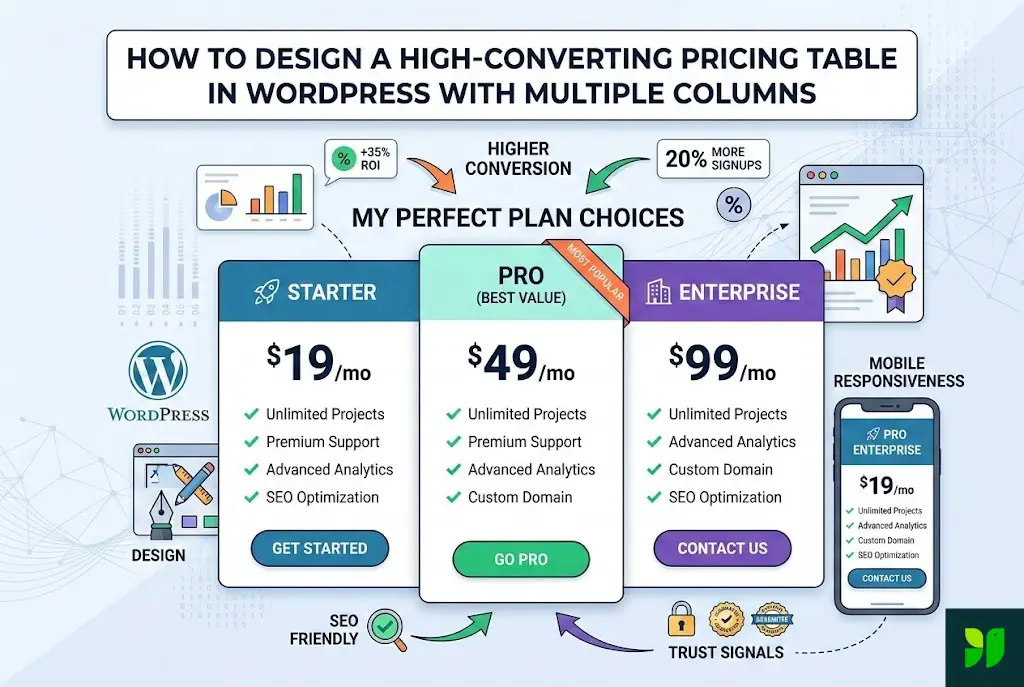
In a three-column WordPress table, your “Basic” plan often serves as the decoy. It’s priced just high enough to make the “Pro” plan look like an incredible steal. By making the middle option only slightly more expensive than the base option but significantly more feature-rich, you nudge the user exactly where you want them.
Anchoring and the Left-to-Right Bias
Human beings in Western cultures read from left to right. This means the first price they see sets the “anchor.”
High-to-Low Strategy: Some experts suggest putting the most expensive plan on the left. This makes the subsequent plans feel “cheap” by comparison.
Low-to-High Strategy: This is more common and builds a sense of “leveling up” your business as you move across the table.
Reducing Cognitive Load
Every time a user has to think “What does this mean?” or “Is this included?”, you lose a percentage of your conversion rate. A high-converting table uses minimalist text and intuitive icons (like green checkmarks and greyed-out “X” marks) to communicate value instantly.
Choosing the Right Infrastructure for WordPress
WordPress offers several paths to building a pricing table. The “best” one depends on your technical comfort level.
A. The Block Editor (Gutenberg) Method
In 2026, the Block Editor is the fastest way to build tables without bloating your site’s code.
Spectra & Kadence Blocks: These are “block libraries” that add a dedicated Pricing Table block to your editor.
Pros: Extremely fast loading speeds (better for SEO/Core Web Vitals) and native integration.
Cons: Slightly less “flashy” than dedicated plugins unless you know custom CSS.
B. Dedicated Pricing Table Plugins
If you want advanced features like “Price Toggles” (Monthly vs. Yearly) or hover animations, a dedicated plugin is the way to go.
Pricing Table by Supsystic: Known for being highly customizable and responsive.
WP Pricing Builder: Excellent for those who want a drag-and-drop interface specifically for tables.
C. The Page Builder Route (Elementor/Divi/Beaver)
If you are already using Elementor or Divi, don’t install a separate plugin. These builders have built-in Pricing Table widgets.
Tip: Use the “Global Widget” feature in Elementor so you can update your pricing in one place and have it reflect across your entire site automatically.
Anatomy of a High-Converting Multi-Column Table
Let’s break down exactly what should go into your columns to ensure they are SEO-friendly and user-optimized.
The Header: Plan Names and “Personas”
Don’t just name your plans “Plan 1, Plan 2, Plan 3.” Use names that reflect the persona of the buyer:
Starter: For freelancers or hobbyists.
Growth: For small teams looking to scale.
Enterprise: For large corporations needing security and support.
The Price Point: Size Matters
The price should be the largest piece of text in the column. In CSS terms, your price should be at least 36px to 48px in bold.
SEO Tip: Use standard text for prices, not images. Search engines need to read your pricing data to potentially display it in “Rich Snippets” on Google search results.
The Feature List: Focus on Benefits, Not Specs
One of the biggest mistakes is listing 50 technical features. Instead, list 5–7 key benefits.
Bad: “50GB SSD Storage.”
Good: “Lightning Fast Loading for 50k Visitors.”
The Call to Action (CTA): The Final Push
Your button should be the most vibrant color on the page. Use “Action Verbs.”
Avoid: “Buy Now” or “Submit.”
Use: “Start My Free Trial” or “Get Instant Access.”
Technical Implementation: How to Build It (Step-by-Step)
If you are using a standard block-based approach, follow these steps to ensure a clean build:
Step 1: Layout Selection
Choose a 3-column layout. Set your “inner container” width to roughly 1200px. This ensures the table doesn’t look too stretched on ultra-wide monitors.
Step 2: Designing the “Featured” Column
To make one column stand out (usually the middle one):
Increase the Scale: Set the transform scale to 1.05 or 1.1.
Add a Shadow: A soft
box-shadow(e.g.,0px 10px 30px rgba(0,0,0,0.1)) creates a “lifted” effect.Add a Ribbon: Place a “Most Popular” or “Best Value” badge at the top.
Step 3: Setting Up the Monthly/Yearly Toggle
This is a massive conversion booster. Most plugins allow you to add a “Toggle” block.
Math for the User: If your monthly price is $20, but the yearly price averages to $15, explicitly state “Save 25% with Yearly Billing.”
Mobile Optimization and Responsiveness
More than 60% of web traffic is mobile. A horizontal table with four columns is impossible to read on a phone.
The Stack Method
Ensure your table is set to “Stack on Mobile.” In WordPress, this is usually a setting under the “Responsive” or “Visibility” tab. The columns should transition from a horizontal row to a vertical list.
Font Scaling
Large prices that look great on desktop might “break” the layout on mobile. Use Responsive Typography settings to decrease the font size for screens smaller than 768px.
Performance and SEO for Pricing Tables
Google cares about how fast your page loads. High-converting tables often use heavy icons or images that can slow things down.
Use SVG Icons: Instead of PNG checkmarks, use SVG icons. They are infinitely scalable and take up almost zero file space.
Schema Markup: This is the “secret sauce” for SEO. Use Product Schema (JSON-LD) to tell Google your pricing. This allows your “starting at $X” price to show up directly in Google search results, increasing your Click-Through Rate (CTR).
Lazy Loading: If your pricing table is at the bottom of a long landing page, ensure it is set to lazy-load so it doesn’t delay the initial page render.
A/B Testing Your Pricing Table
You should never assume your first design is the best. Small changes can lead to huge wins. Use a tool like Google Optimize or Nelio A/B Testing for WordPress to test:
Button Color: Does “Safety Green” or “Urgency Orange” get more clicks?
The Anchor: Does putting the most expensive plan first increase the average order value?
Free Tiers: Does “Free Trial” convert better than “100% Money Back Guarantee”?
Summary: Checklist for a Winning Table
To wrap up, ensure your WordPress pricing table checks these boxes:
Clarity: Can a user understand the difference between plans in under 5 seconds?
Highlighting: Is the “Ideal” plan visually distinct?
Mobile-First: Does it look clean on a smartphone?
Speed: Does the page load in under 2 seconds?
Trust: Are there security badges or money-back guarantees visible?
Final Thoughts
Designing a high-converting pricing table in WordPress is a mix of visual hierarchy and psychological triggers. Don’t be afraid to experiment with your layouts. Start with a clean, three-column design, focus on the benefits rather than the features, and always—always—ensure your mobile experience is flawless.
Would you like me to provide the specific CSS code for a “hover-lift” effect or help you write the Schema Markup for your pricing page?