If you’ve been running a WordPress site for more than a few months, you know the “Media Library Crawl.” You’re looking for a specific graphic you used in a blog post last year. You head to the Media Library, click “Load More,” and keep scrolling… and scrolling… and scrolling.
By default, WordPress is a digital hoarder. It throws every image, PDF, and video into one giant, chronological pile based on the month and year of upload. Without a system for categorizing and tagging, your Media Library quickly becomes a digital junk drawer that slows down your workflow and frustrates your team.
In this exhaustive guide, we’re going to transform your media management. We’ll dive into why organization is a secret weapon for SEO, how to architect a tagging system that scales, and the specific tools you need to keep your site running like a professional powerhouse.
Why Media Organization is an SEO Necessity
Many site owners think media organization is just for “neat freaks.” In reality, it is a foundational element of Technical SEO and Site Governance.
The Relationship Between Organization and Speed
Search engines like Google prioritize User Experience (UX). A cluttered media library often leads to “duplicate upload syndrome.” When an editor can’t find an existing logo or icon, they simply upload it again. This bloats your server, increases backup sizes, and can lead to multiple versions of the same file (some unoptimized) floating around your site. A categorized library prevents this bloat.
Contextual Metadata and Search Intent
When you categorize an image (e.g., placing it in a folder named /Marketing/Case-Studies/2026/), you are creating a mental map of that file’s purpose. This mindset naturally leads to better Alt Text and Title Tags. Google’s image search algorithms are increasingly sophisticated; they look for contextual clues around an image to determine its relevance. If your media is logically grouped, you are far more likely to apply consistent, keyword-rich metadata that helps you rank in Image Search.
Workflow Efficiency for Scale
If you plan to grow your site to hundreds or thousands of pages, you cannot rely on memory. Categorization allows for “Digital Asset Management” (DAM) within WordPress. This means your creative team, SEO specialists, and developers can find what they need in seconds, not minutes.
Understanding the Architecture (Folders vs. Tags)
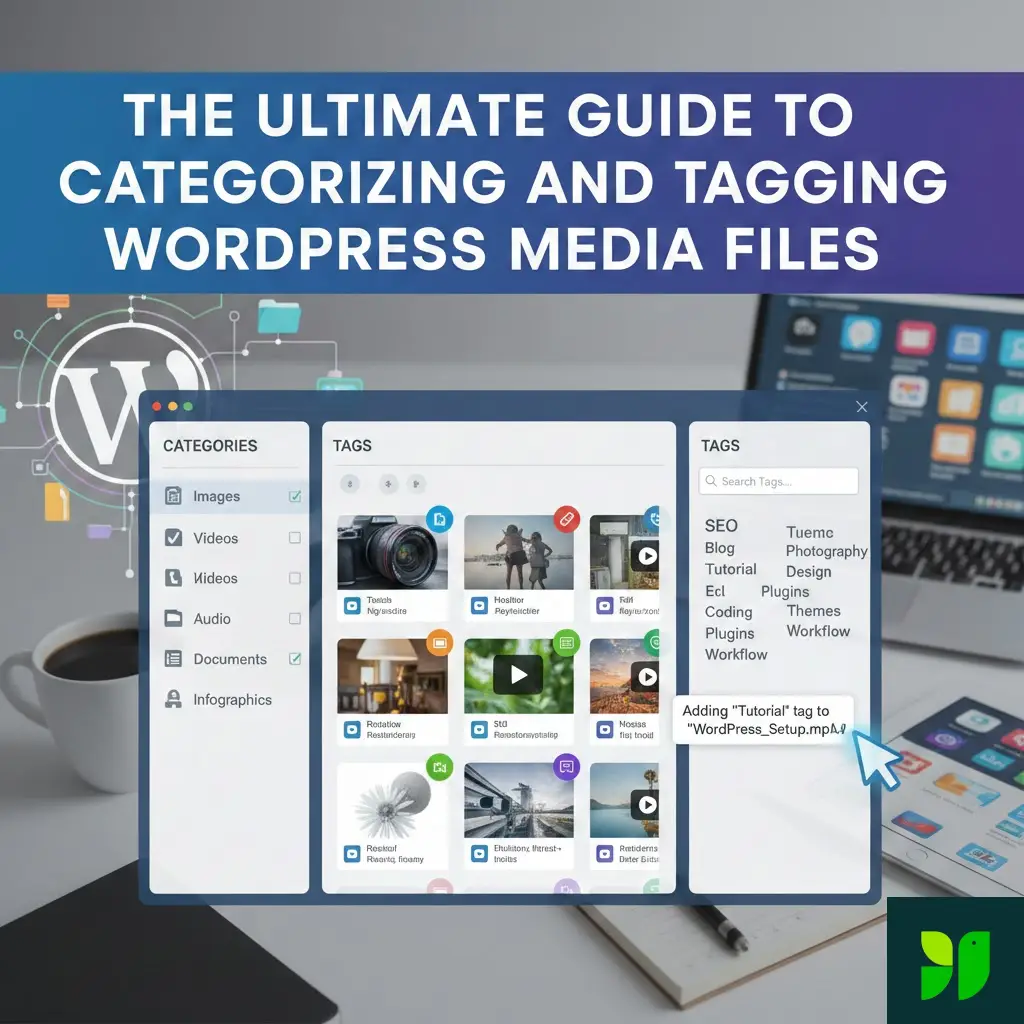
Before you install a plugin, you must understand the two primary ways to sort data in WordPress: Hierarchical (Categories/Folders) and Flat (Tags/Labels).
The Role of Categories (The “Where”)
Think of categories as physical drawers in a filing cabinet. An item typically lives in one drawer. In WordPress Media, categories are best used for the source or type of the file.
- Examples: Product Photos, Blog Featured Images, Brand Assets, Team Headshots, PDF Downloads.
The Role of Tags (The “What”)
Tags are descriptive labels that can be applied across different categories. An image can have five tags but should usually have only one primary category.
- Examples: Color (Blue), Season (Summer), Subject (Modern Architecture), Project Name (Project Alpha).
The Hybrid Strategy: The most successful WordPress sites use a “Folder” structure for the broad file type and “Tags” for specific attributes. This allows you to find “A Blue (Tag) Logo (Category/Folder)” in two clicks.
Step-by-Step: How to Build Your Organization System
Step 1: The Media Audit
Don’t start creating folders randomly. Export a list of your media or spend 20 minutes scrolling through your library to identify the 5-7 most common “types” of files you upload. Most businesses find their media falls into these buckets:
Identity Assets: Logos, favicons, brand style guides.
Product/Service Images: High-res shots of what you sell.
Editorial Images: Stock photos and custom graphics for blog posts.
Documents: PDF menus, whitepapers, or instructional guides.
UI/UX Elements: Icons, buttons, and background patterns.
Step 2: Designing Your Folder Hierarchy
A common mistake is making folders too deep (e.g., Media > Blog > 2026 > February > Tuesday > Images). This is too much work to maintain. Instead, aim for a three-level maximum hierarchy:
Level 1 (Department): Marketing
Level 2 (Asset Type): Social Media Graphics
Level 3 (Platform/Campaign): Instagram-Spring-Sale
Step 3: Implementing Naming Conventions
SEO starts before the upload. Your categorization will be useless if your files are named IMG_9921.jpg.
Bad:
image1.pngGood:
organic-cotton-yoga-mat-blue.pngBy naming files descriptively, your organization plugin’s “Search” function becomes a powerful tool.
The Best Plugins for the Job (2026 Edition)
WordPress does not include media folders by default. You will need a reputable plugin to handle this. Here are the top contenders:
1. FileBird (Best Overall UX)
FileBird is the “gold standard” for ease of use. It creates a virtual sidebar in your media library that looks exactly like the Finder on a Mac or File Explorer on Windows.
Key Feature: Drag-and-drop interface. You can literally grab a batch of images and drop them into a folder.
SEO Benefit: It doesn’t change the actual file URL, so moving images won’t break your site.
2. HappyFiles (Best for Performance)
If you are worried about site speed, HappyFiles is incredibly lightweight. It’s a favorite among developers because it integrates perfectly with page builders like Elementor, Divi, and Bricks.
- Key Feature: You can categorize more than just media (posts, pages, and custom post types).
3. Real Media Library (Best for Large Scale)
If you have 10,000+ images, this is the powerhouse you need. It handles massive databases without lagging and offers advanced sorting features.
- Key Feature: Creates “Collections” and “Galleries” directly from your folder structure.
Advanced Media SEO: Beyond the Folder
Once your files are in the right folders, you need to optimize the data within the file. This is where you separate yourself from the amateurs.
Master the Alt Text
Alt text (Alternative Text) is used by screen readers for visually impaired users and by Google to understand the image.
The Formula:
[Subject] doing [Action] in [Context].Example:
Man using a silver laptop in a modern coffee shop during the day.
Captions and Descriptions
While Alt text is for machines and accessibility, captions are for humans. Google tracks how long people stay on your page (Dwell Time). Engaging captions that explain a chart or provide a funny context to an image keep users reading, which indirectly boosts your SEO.
Handling Image Dimensions
Never upload a 5000px wide image if it’s only going to appear as a 500px thumbnail.
- Pro Tip: Use your categorization system to find “Original High Res” files, then use a tool like Squoosh.app or a WordPress plugin like ShortPixel to create web-ready versions before assigning them to their final folders.
Automating Your Workflow
To maintain a library of 1,500+ words’ worth of content, you need automation.
Auto-Categorization: Some plugins allow you to set “Rules.” For example, any file uploaded by the “Social Media Manager” user role could automatically go into the
/Social/folder.Bulk Actions: Don’t organize one by one. Use the “Bulk Select” tool in your Media Library once a week to clean up the “Uncategorized” folder.
Conclusion: Take Control of Your Library
A cluttered Media Library is a weight that slows down your creativity and your website’s performance. By implementing a simple system of categories and tags, you aren’t just “cleaning up”—you are building a scalable asset library that grows with your business.
Whether you choose a visual folder system like FileBird or a metadata powerhouse like Media Library Assistant, the best time to start organizing was yesterday. The second best time is today.