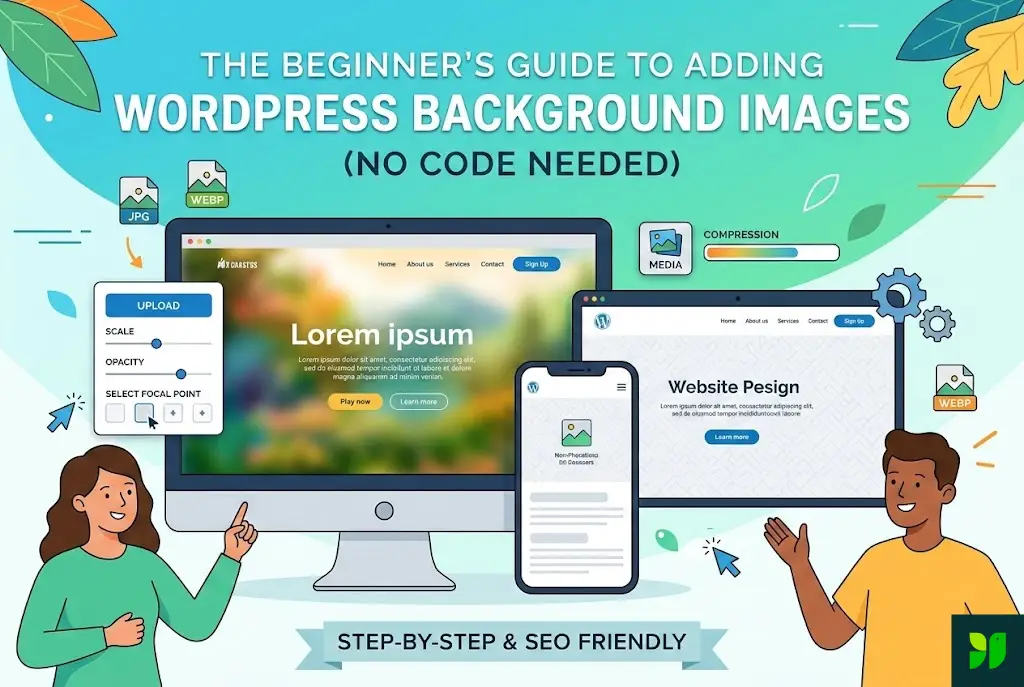
Visual storytelling is the backbone of the modern web. When a visitor lands on your website, they don’t start reading your copy immediately—they feel your brand first. Nothing communicates a brand’s “vibe” faster than a high-quality background image. Whether it’s a serene landscape for a travel blog or a crisp, technical geometric pattern for a SaaS company, backgrounds provide the context for your content.
Historically, adding a background image meant wrestling with CSS code like background-size: cover; or editing header.php files. For a beginner, that’s a nightmare. Fortunately, WordPress has transitioned into a “No-Code” era.
In this exhaustive 2,000-word guide, we’ll break down every possible way to add background images, the science of image optimization, and the design secrets that separate amateur sites from professional ones.
The Philosophy of Background Images
Why Backgrounds Matter for Conversion
A background image isn’t just “wallpaper.” It serves three psychological functions:
Anchoring: It grounds the text, making the page feel less like a floating document and more like a curated space.
Directional Cues: A background image with a specific “flow” can lead a user’s eye toward your Call to Action (CTA) buttons.
Emotional Priming: Warm colors in a background can induce a sense of urgency or comfort, while cool blues suggest stability and trust.
Common Pitfalls to Avoid
Before we touch the dashboard, remember the “Three Too’s”:
Too Busy: An image with too much detail makes text unreadable.
Too Heavy: Large files (over 500KB) will destroy your PageSpeed Insights score.
Too Irrelevant: If you sell software, a background of a random forest might confuse your brand identity.
Preparing Your Assets (The Technical Foundation)
You cannot build a beautiful house on a weak foundation. Your “foundation” here is your image file.
1. Sizing for the Modern Web
Most desktops use a 1920×1080 resolution. However, with 4K monitors becoming common, you might be tempted to upload 4,000px wide images. Don’t. * Recommendation: Stick to 1920px width. WordPress’s responsive engine will scale this down for mobile users automatically.
2. The Great Format Debate: JPG vs. PNG vs. WebP
JPG: Best for photographs. Great compression-to-quality ratio.
PNG: Use only if you need transparency (which is rare for a full background).
WebP: The gold standard. It’s 30% smaller than JPG with the same quality. Google loves it.
3. Compression Tools
Never upload a photo directly from a stock site or your camera. Use these free tools first:
Squoosh.app: Google’s own tool for converting and compressing images.
TinyJPG: Great for bulk processing.
Canva: Use the “Resize” and “Quality” sliders when exporting.
Method 1 – The Global Customizer (The “Set It and Forget It” Way)
If you want one image to appear behind your entire website (or specifically behind the content area of every page), this is the simplest route.
How to do it:
Navigate to Appearance > Customize.
Look for Background Image. (In “Block Themes” like Twenty Twenty-Four, this is now handled in the Site Editor, which we will cover in Method 4).
Upload your image.
Background Preset: You’ll see a dropdown.
Default: Original size.
Fill Screen: This is usually what you want. It ensures no white gaps appear.
Fit to Screen: Shows the whole image, but may result in “letterboxing” (black/white bars).
Repeat: Ideal for “seamless patterns” (small tiles that fit together).
Image Attachment: Choose Fixed if you want the “parallax” effect where the content slides over the image. Choose Scroll if you want the image to move with the page.
Method 2 – The WordPress Block Editor (The “Sectional” Way)
The Block Editor (Gutenberg) is the most powerful tool for modern users. It allows you to have different backgrounds for different sections of a single page.
Using the Cover Block
The Cover Block is specifically designed for backgrounds.
Add a new block and search for “Cover.”
Upload your image.
The Overlay Secret: By default, the Cover block adds a gray overlay. Click the block, go to the Styles tab in the sidebar, and adjust the Opacity.
Pro Tip: A 50-70% opacity overlay is the “cheat code” for making white text readable over any photo.
Focal Point Picker: You’ll see a small circle on the image in your sidebar. Move this to the most important part of the photo (e.g., a person’s face). This ensures that even when the screen shrinks for mobile, that specific spot remains visible.
Using the Group Block
With recent updates, the Group Block now supports background images.
Why use Group instead of Cover? The Group block allows for more complex layouts inside it (like columns, lists, and multiple headings) while maintaining a consistent background.
To do this, select your Group block, go to Styles, and click the Background icon.
Method 3 – Full Site Editing (The “Modern” Way)
If you are using a Block Theme (like Twenty Twenty-Three or Twenty Twenty-Four), the Customizer is gone. You now use the Site Editor.
Go to Appearance > Editor.
Select Styles (the half-filled circle icon).
Select Layout or Blocks.
If you want to add a background to the entire site, you often have to wrap your entire Template in a Group Block and apply the background there.
This gives you granular control over the “Global” look without needing a specialized theme.
Method 4 – Using Page Builders (Elementor & Divi)
Page builders offer the most “visual” control over backgrounds.
Elementor Background Features:
Background Overlays: You can blend two colors over an image or even use a “Gradient” overlay to make one side of the image darker than the other.
Background Slideshow: Elementor allows you to select 5–6 images that rotate in the background of a single section.
Video Backgrounds: You can paste a YouTube link, and it will play as a silent, looped background. (Warning: This can slow down mobile sites significantly).
Advanced Design Hacks (Level Up Your Site)
To make your site look like it cost $5,000 to build, use these three techniques:
1. Parallax Scrolling
Parallax is when the background moves at a slower speed than the foreground content. It adds a 3D depth to the page.
How: In the Cover block, toggle “Fixed Background.”
When to use: On “Hero” sections (the top of the homepage).
2. Pattern Overlays
Sometimes a solid color overlay looks boring. Many designers use a “Dot” or “Line” pattern overlay on top of an image. This masks low-quality photos and makes text incredibly easy to read.
3. Shape Dividers
If you use Elementor or a premium block library (like Kadence Blocks), you can add “Shape Dividers” to the top or bottom of your background image. This turns a boring straight line into a wave, a mountain, or a slant, leading the user’s eye down the page.
Accessibility and SEO (The “Invisible” Essentials)
Don’t let your beautiful background break your site’s functionality.
Contrast Ratios
Google and screen readers care about contrast. If you have white text on a light background image, you are violating WCAG 2.1 accessibility standards.
The Test: Use a tool like Adobe Color’s Contrast Checker. If your text/background doesn’t pass, increase your overlay opacity.
Performance Optimization (Lazy Loading)
A background image is usually the “Largest Contentful Paint” (LCP) on your site.
Ensure you are using a plugin like Autoptimize or WP Rocket.
These plugins ensure that images “below the fold” aren’t loaded until the user scrolls down, significantly speeding up the initial load of your homepage.
Troubleshooting Common Issues
“My image is repeating like a tile!”
This happens when the image is smaller than the container it’s in.
Fix: Go to settings and change “Repeat” to “No-Repeat” and “Size” to “Cover.”
“The background looks great on my laptop but terrible on my iPhone.”
Phones are vertical; laptops are horizontal.
Fix: Use an image with the subject in the center. Avoid images where the “action” is on the far left or right, as those parts will be cut off on mobile.
“I uploaded a new image but I don’t see it.”
This is usually a Caching issue.
Fix: Clear your browser cache or your WordPress caching plugin (like LiteSpeed or W3 Total Cache).
Summary Checklist for Beginners
Select a high-quality image from a site like Unsplash or Pexels.
Crop it to 1920×1080.
Compress it using TinyJPG (aim for <300KB).
Upload via the Cover Block (for sections) or Customizer (for global).
Add an Overlay (opacity 40%+) to ensure text readability.
Check Mobile view to ensure the focal point is correct.
Test Speed using Google PageSpeed Insights.
Conclusion
Adding a background image in WordPress is no longer a technical hurdle—it’s a creative choice. By using the Cover block and the built-in Customizer tools, you can transform a plain site into a visual experience without touching a single line of CSS.
The key is balance. Use backgrounds to enhance your message, not distract from it. Keep your files small, your contrast high, and your focal points centered. Your visitors—and your SEO rankings—will thank you.