If you’ve spent any time building WordPress sites, you’ve likely encountered Advanced Custom Fields (ACF). It’s the gold standard for adding specific data—like price, date, or a custom gallery—to your posts and pages.
But there’s a common hurdle that separates beginners from pros: once you’ve created those custom fields, how do you actually get that data to show up on the front end without writing a mountain of PHP code?
Enter Dynamic Tags.
In this guide, we’re going deep. We’ll cover why dynamic tags are the “secret sauce” of modern web design, how they function under the hood, and how you can use them to build websites that are easier to manage and faster to deploy.
The Philosophy of Dynamic Content
Before we click a single button, we need to understand the shift in mindset. Traditional web design is static. You open a page, type “Blue Widget,” set the price to “$20,” and hit save. If you have 50 widgets, you do that 50 times.
Dynamic Design is different. You create a “Template” for a Widget. You tell the template: “Put the Title here” and “Put the Price here.”
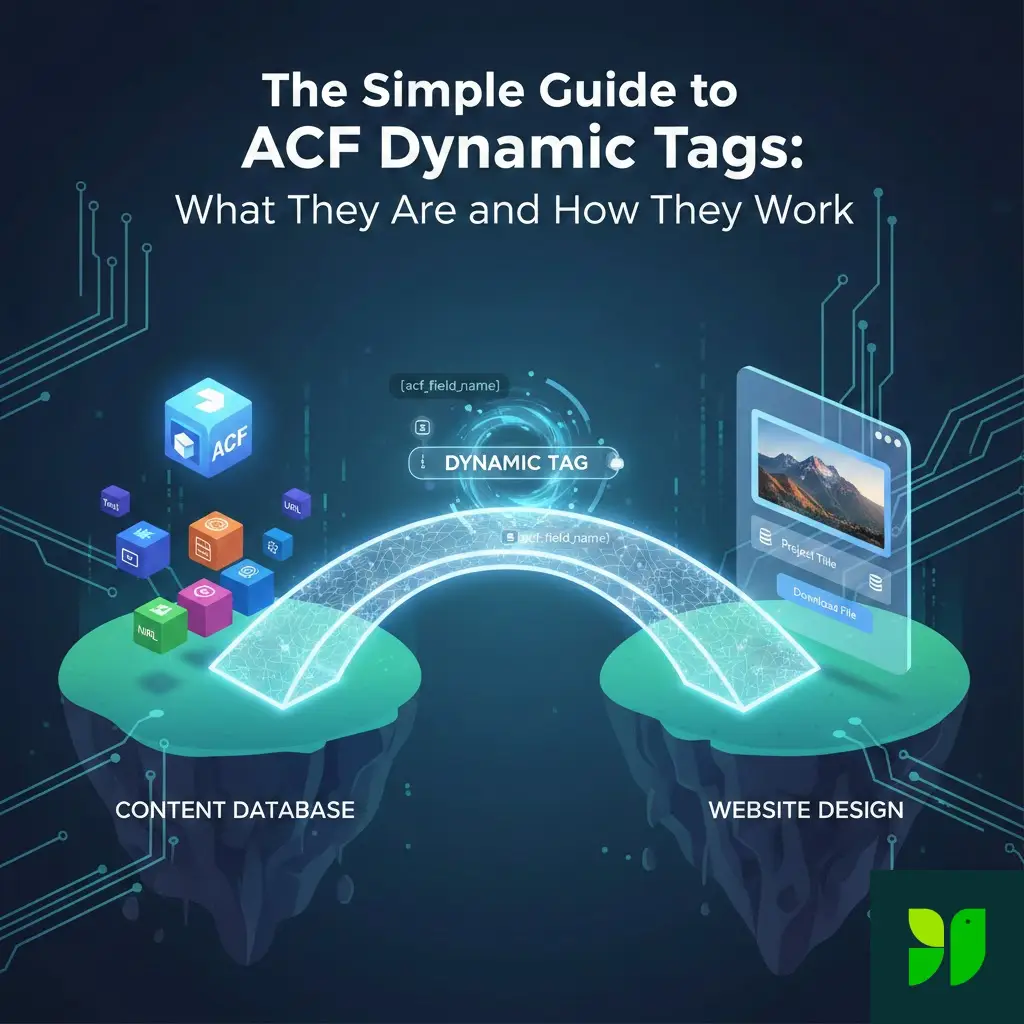
ACF Dynamic Tags are the “messengers” that go into the database, grab the specific info for the page the user is looking at, and drop it into your design. This separation of Content (ACF) and Presentation (Your Theme/Builder) is what allows a single developer to manage sites with thousands of pages effortlessly.
What Exactly Are ACF Dynamic Tags?
In technical terms, a dynamic tag is a specialized hook or shortcode-alternative used by page builders (like Elementor, Divi, or Bricks) and block suites.
In the “old days,” displaying an ACF field required opening single.php in your code editor and typing:
<?php the_field(‘product_price’); ?>
While this works, it’s a nightmare for non-coders and slows down the design process. Dynamic Tags turn that line of code into a selectable menu option. When you click a “Dynamic Tag” icon in a visual builder, the software generates the necessary logic to fetch that ACF data for you.
The Core Mechanics: How It Works
The process follows a logical “Handshake” between three different parts of WordPress:
Step A: The Definition (ACF)
You define what kind of data you want to collect. Is it a number? An image? A Google Map? In ACF, you create a Field Group. For a “Team Member” page, you might create:
member_role(Text)member_email(Email)member_photo(Image)
Step B: The Input (The Dashboard)
When you edit a Team Member’s post, you’ll see these fields. You fill them out. This data is stored in the wp_postmeta table in your WordPress database, linked specifically to that Post ID.
Step C: The Retrieval (The Dynamic Tag)
When you design your Team Member template, you add a Heading widget. Instead of typing “Marketing Manager,” you click the Dynamic Tags icon. You select ACF Field, then choose member_role.
When a visitor hits the page, the server says: “I’m on Post ID 402. The Dynamic Tag wants ‘member_role’ for ID 402. Fetching… ‘Marketing Manager’ found. Displaying now.”
Deep Dive: Using Dynamic Tags with Different Field Types
Not all data is created equal. ACF offers over 30 field types, and dynamic tags handle them differently.
Text and Text Areas
These are the simplest. You use these for headlines, subheadlines, or short descriptions.
Pro Tip: Use the “Before” and “After” settings in your dynamic tag options. For a “Price” field, put the “$” sign in the Before box so it stays consistent even if the user just types “50” in the backend.
Image Fields
This is where the magic happens. Instead of choosing a static image from your library, you select the ACF Image field. This allows you to create “Hero” sections where the background image changes automatically based on which page you are on.
Note: Ensure your ACF Image field is set to “Image ID” or “Image Array” for the best compatibility with builders like Elementor.
Link and URL Fields
Standard buttons are static. By using a Dynamic Tag for the “Link” field of a button, you can create “Resource” pages where the “Download PDF” button pulls a unique file for every single post.
Select and Checkbox Fields
These are great for “Badges.” For example, if you have a “Status” field with options like “In Stock” or “Out of Stock,” you can use a dynamic tag to display that status in a colorful pill on the front end.
Integrating with Popular Tools
The experience of using dynamic tags changes depending on your stack.
| Tool | Dynamic Tag Capability | Ease of Use |
| Elementor Pro | Built-in “Database” icon on almost every setting. | 10/10 |
| Bricks Builder | Uses {acf_field_name} syntax; extremely fast. | 9/10 |
| Gutenberg (Native) | None. Requires 3rd party blocks (Kadence, Stackable). | 4/10 |
| Beaver Builder | Uses “Field Connections” menu. | 8/10 |
Elementor Pro Focus
Elementor is the king of dynamic tags. To use them:
Drag a widget (e.g., Image).
Hover over the “Choose Image” box.
Click the Dynamic Tags icon (it looks like a stack of coins).
Scroll to ACF Field.
Click the Wrench icon to choose the specific field.
Advanced Strategy: Fallbacks and Logic
What happens if a user forgets to fill out a field? A “broken” look is the quickest way to lose a client’s trust.
Setting Fallbacks
Most dynamic tag interfaces allow you to set “Fallback” content. If your “Sale Price” field is empty, you can set a fallback of “Contact for Pricing.” This ensures the layout never looks empty or “buggy.”
Conditional Logic vs. Dynamic Tags
While Dynamic Tags pull data, Conditional Logic decides if a widget should show up at all. Advanced developers combine these.
Example: Only show the “Discount Badge” (Dynamic Tag) IF the “Sale Price” field is not empty (Conditional Logic).
Performance and SEO Considerations
A common myth is that dynamic sites are slower than static ones. While there is a microscopic delay because the server has to “look up” the ACF data, the SEO benefits far outweigh the costs.
Consistency: Dynamic tags ensure your
<h1>and<h2>tags are perfectly structured across 1,000 pages because they follow a template.Structured Data: You can use dynamic tags to fill out Schema markup. If you have an ACF field for “Product Rating,” you can map that to your SEO plugin’s Schema settings dynamically.
Page Speed: To keep things fast, use a caching plugin like WP Rocket or LiteSpeed Cache. These “freeze” the dynamic output into a static HTML file for visitors, giving you the best of both worlds.
Why This Matters for Client Handover
If you build websites for clients, ACF Dynamic Tags are your best friend.
Clients are notorious for breaking layouts. If you give them access to a page builder, they might accidentally delete a column or change a font. By using ACF and Dynamic Tags, you can lock down the design.
The client only sees simple text boxes in the WordPress dashboard. They type their content, hit “Update,” and the Dynamic Tags ensure that content appears on the front end in the exact font, color, and position you designed. It’s “Client-Proofing” at its finest.
Common Troubleshooting
If your tag isn’t showing up, check these three things:
Field Name vs. Field Label: Ensure you are using the “Field Name” (lowercase with underscores) in your tag settings, not the “Label” (proper case with spaces).
Post ID Context: If you are using a Dynamic Tag inside a “Loop Builder” or “Archive,” ensure the tag is set to pull from the “Current Post.”
Data Format: If you are trying to pull a “Date Picker” field, ensure the “Return Format” in ACF matches what your page builder expects (usually
YmdorF j, Y).
Conclusion: Unleash the Power of Data
ACF Dynamic Tags take WordPress from a “blogging tool” to a “data management powerhouse.” They allow you to build complex, scalable, and professional websites that are a joy to manage.
By mastering the link between your ACF fields and your visual builder’s dynamic tags, you’re no longer just “making pages”—you’re architecting systems.