The visual landscape of the web has shifted. In 2026, the “search and download” era of stock photography is officially over. Website owners are no longer browsing static libraries; they are using “Generative Design” to create bespoke visuals that match their brand’s DNA perfectly.
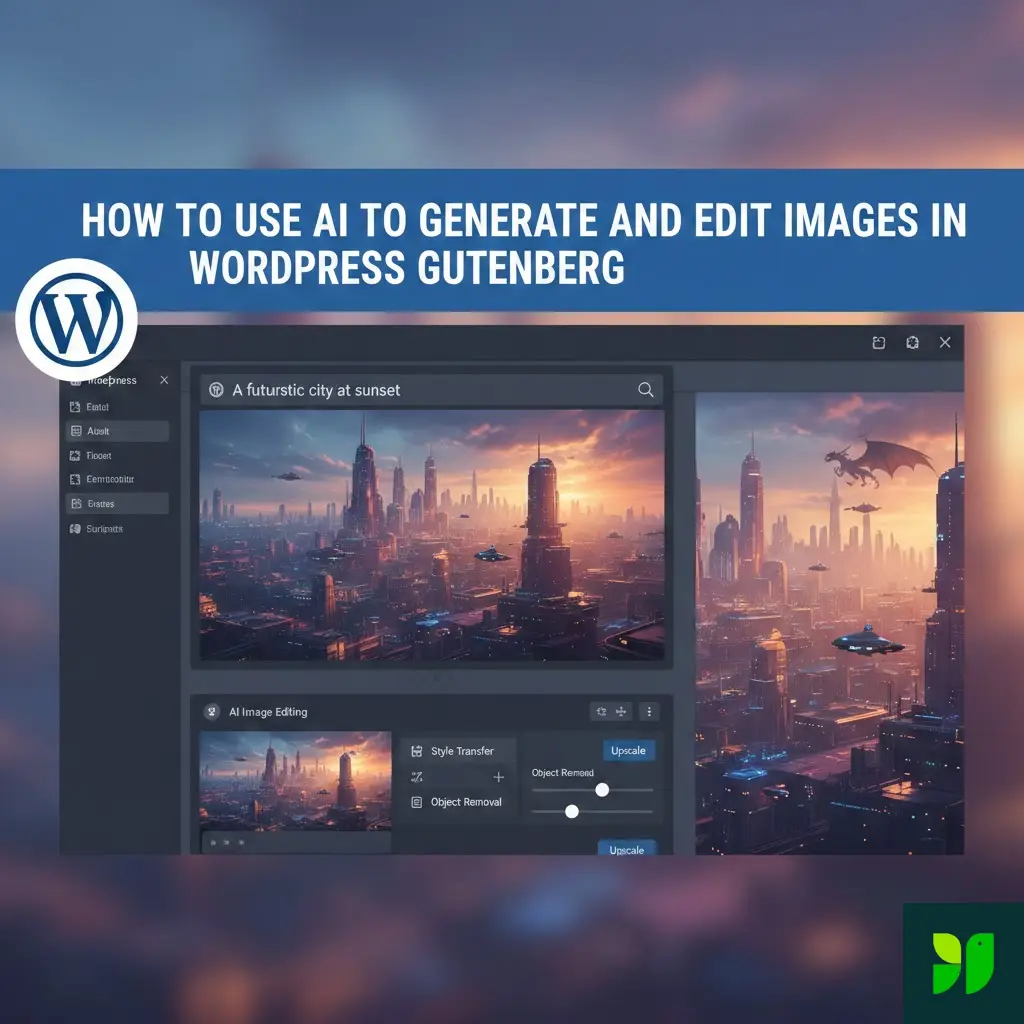
If you are using WordPress, you already have a front-row seat to this revolution. The Gutenberg (Block) Editor has evolved into an AI-integrated canvas. Whether you want to generate a photorealistic hero image from a text prompt or perform advanced “In-painting” to remove an unwanted object from a photo, you can now do it all without leaving your dashboard.
In this guide, we’ll break down the exact tools, prompts, and workflows you need to master AI image generation and editing in WordPress this year.
The State of AI in WordPress: Why Gutenberg?
Before we dive into the “how,” let’s talk about the “where.” While page builders like Elementor and Divi have their own AI suites, Gutenberg is the native heart of WordPress.
By 2026, the WordPress Core team has introduced the “Abilities API,” a standardized way for AI plugins to talk to the block editor. This means that instead of clunky, disjointed interfaces, AI features now feel like part of the original software. Using AI directly in Gutenberg ensures:
Performance: No heavy code bloat slowing down your site.
Context Awareness: The AI “reads” your headline and suggests relevant images.
Workflow Speed: You go from idea to published image in under 60 seconds.
Top-Rated AI Plugins for 2026
To unlock these features, you need a bridge. Here are the three most powerful plugins currently dominating the WordPress AI space:
A. Essential Blocks (with AI Suite)
Essential Blocks has become the “Swiss Army Knife” for Gutenberg. Their AI Suite is specifically built for creators who want high-end design without the high-end price tag.
Best For: Advanced editing like background removal and object isolation.
Connection: Uses a “Bring Your Own Key” (BYOK) model, connecting to OpenAI (DALL-E 3) or Stable Diffusion.
B. Jetpack AI Assistant
Jetpack remains the most user-friendly option for beginners. It integrates a “Generate with AI” button directly into the standard WordPress Image block.
Best For: Quick, high-quality generation for blog post featured images.
Integration: Totally seamless; it feels like a native WordPress feature.
C. AI Engine (by Meow Apps)
For the power users and developers, AI Engine offers the “AI Playground.” It allows you to choose between different models (OpenAI, Google Gemini, or Anthropic) to find the specific aesthetic you want.
Best For: Bulk image generation and experimenting with different AI “engines.”
Step 1: Generating the Perfect Image
The difference between a “weird AI image” and a “professional masterpiece” lies in the prompt.
The Anatomy of a Winning Prompt
In 2026, AI models are smarter, but they still need direction. Use this formula:
[Subject] + [Action/Setting] + [Style] + [Lighting/Mood] + [Technical Specs]
Weak Prompt: “A blue car in a city.”
Power Prompt: “A sleek, electric sports car parked on a rainy neon-lit street in Tokyo at night, cinematic puddles, reflections of billboards on the hood, 8k resolution, shot on 35mm lens, photorealistic style.”
How to do it in Gutenberg:
Add an Image Block (or the specific plugin’s AI block).
Click the “Generate with AI” icon in the toolbar.
Enter your prompt and select a Style Preset (e.g., “Cinematic,” “Vibrant,” or “Minimalist”).
Hit Generate and choose from the 4 variations provided.
Step 2: Advanced AI Editing (Within the Editor)
Generation is only half the battle. Sometimes you have the right image, but it needs a “tweak.” This is where AI editing (or “Generative Editing”) comes in.
A. Background Removal & Replacement
This is a game-changer for e-commerce and personal branding.
The Workflow: Click your image, select the AI Edit tool, and hit “Remove Background.”
The Result: A clean PNG cutout. You can then use the “Replace Background” prompt to place your subject anywhere—from a cozy café to a professional office—without ever picking up a green screen.
B. In-Painting (Object Swapping)
Imagine you have a great photo of a desk, but there’s a cluttered coffee mug you want to get rid of.
Select the “Generative Fill” or “Isolate Object” tool.
Use the brush to “paint over” the mug.
Type a new prompt: “A minimalist white ceramic vase with a single green leaf.”
The AI will analyze the lighting of the rest of the room and generate a vase that fits perfectly into the original shadows.
C. Image Variations
If you have a logo or a specific photo and want a “similar vibe” but different composition, the “Variations” tool will analyze the original image’s colors and subject to create 4 new versions that feel like a cohesive set.
SEO and Performance: The Technical Side
AI images can be heavy. To keep Google happy, follow this 2026 checklist:
Automatic Alt Text Generation
Most AI plugins now have an “Auto-Alt” feature. When the image is generated, the AI describes it for screen readers.
Pro Tip: Always double-check this. If your image is for a post about “Remote Work,” make sure the alt text includes that context.
WebP and High-Efficiency Compression
AI-generated PNGs can be 5MB+. Use a plugin like ShortPixel or Smush set to “Auto-Convert to WebP.” This ensures your high-res AI art doesn’t kill your Core Web Vitals score.
Lazy Loading & Fetch Priority
Since hero images are usually AI-generated, set their Fetch Priority to “High” in the Gutenberg Advanced settings to ensure they appear instantly when the page loads.
Ethics, Rights, and Copyright in 2026
The legal landscape has matured since the early days of AI. Here is what you need to know:
Commercial Use: If you use a paid plugin (like Jetpack or Essential Blocks), you generally own the rights to use those images for your business.
Copyrightability: Keep in mind that purely AI-generated images are still difficult to “copyright” in many countries. If you have a unique brand mascot, it’s better to have a human designer refine the AI’s base work.
Bias Awareness: Always review your generated people. 2026 models are much better, but it’s your job as the editor to ensure your site’s imagery is diverse and inclusive.
Troubleshooting Common AI “Glitches”
Even in 2026, AI isn’t perfect. Here’s how to fix common issues:
The “Six Finger” Problem: If a person looks weird, use the “Edit with Prompt” tool. Select the hand and type “Correct human hand with five fingers.”
Mangled Text: AI still struggles with specific spelling in images. If you need a sign that says “OPEN,” generate the sign without text, then use a Gutenberg Overlay Block to add the text yourself.
Low Resolution: If your image looks blurry, look for the “Upscale” button in your plugin’s toolbar. This uses AI to add pixels, turning a 512px image into a crisp 2048px visual.
Conclusion: Becoming a Visual Storyteller
The barrier between “having an idea” and “seeing it on screen” has evaporated. By mastering AI within the Gutenberg editor, you are no longer limited by your budget or your photography skills. You are only limited by the clarity of your prompts.
Start small: Try replacing your next blog post’s featured image with an AI generation. Once you get the hang of the prompt formula, move on to background replacements for your product pages.