In the current digital economy, “ownership” is taking a backseat to “access.” From SaaS platforms to premium newsletters and fitness coaching, the subscription model is the undisputed king of business stability. For WordPress users, the challenge has always been the technical barrier to entry. Traditionally, setting up recurring payments meant wrestling with the massive overhead of WooCommerce or hiring a developer to write custom API integrations.
But as we move through 2026, the tools have matured. By combining the visual precision of Elementor with the streamlined efficiency of Better Payment, you can build a sophisticated subscription engine that looks professional and converts like crazy—without writing a single line of code.
The Strategy: Why Subscriptions? Why Now?
Before we touch the settings, it is vital to understand why this specific stack—Stripe, Elementor, and Better Payment—is the winning combination for 2026.
Recurring Revenue vs. One-Time Sales
One-time sales are a treadmill; you start every month at zero. Subscriptions, however, provide Predictable Monthly Recurring Revenue (MRR). This allows you to forecast growth, invest in better content, and reduce the “feast or famine” stress of freelancing or small business ownership.
The Problem with Bulky Solutions
In the past, people used WooCommerce for subscriptions. While powerful, WooCommerce is a “heavy” plugin. It adds dozens of database tables, slows down your site speed, and requires its own ecosystem of paid extensions just to handle recurring billing.
Better Payment is the “lightweight” alternative. It communicates directly with Stripe, keeping your site lean and your loading speeds (and SEO rankings) high.
Setting Up Your Stripe Command Center
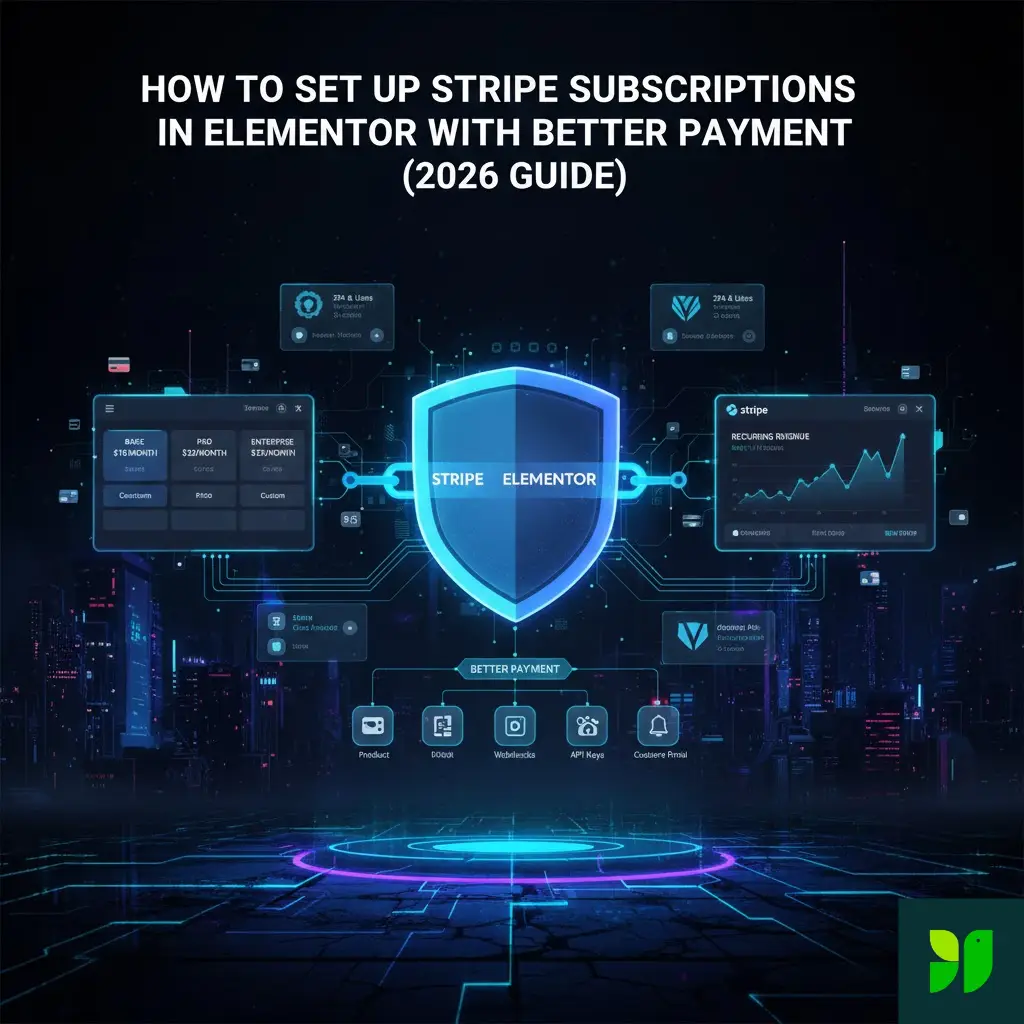
Stripe isn’t just a payment processor; it’s your financial engine. To set up subscriptions, you have to configure the products on Stripe’s end first so that WordPress knows what to “call.”
Step 1: Defining the Product
Log into your Stripe Dashboard. Navigating to the Product Catalog, click “Add Product.”
The Name: Make it clear. This is what will appear on your customer’s credit card statement.
Pricing Models: 2026 brings more flexibility. You can choose Flat Rate (e.g., $20/month) or Usage-Based (e.g., $1 per credit). For most Elementor sites, Flat Rate is the way to go.
Billing Cycle: Choose between daily, weekly, monthly, or yearly. Pro Tip: Offering a “Yearly” option at a 20% discount is a proven way to increase your upfront cash flow.
Step 2: The API Handshake
To connect Stripe to Better Payment, you need your API keys.
Go to Developers > API Keys.
You will see a Publishable Key (starts with
pk_) and a Secret Key (starts withsk_).Warning: In 2026, security is tighter than ever. Ensure you are using Restricted Keys if you want to limit the plugin’s access to only the necessary data.
Configuring Better Payment for WordPress
Once your Stripe products are ready, it’s time to prep your WordPress environment. Better Payment acts as the bridge that brings Stripe’s functionality into the Elementor editor.
Installation and Global Settings
After installing the plugin from the WordPress repository, head to Better Payment > Settings.
Select Gateway: Toggle Stripe to “On.”
Enter Credentials: Input your Publishable and Secret keys.
Live vs. Test Mode: Always start in Test Mode. Stripe provides a sandbox environment where you can simulate successful and failed payments without actually charging a card.
The Importance of Webhooks
A “Webhook” is basically Stripe calling your website to say, “Hey, the payment for User #402 just went through!” Without webhooks, your website won’t know if a subscription has been renewed or if a card was declined. In the Better Payment settings, you will find a Webhook URL. Copy this, go back to Stripe (Developers > Webhooks), and add it as a new endpoint. Ensure you select the events checkout.session.completed and invoice.paid.
Designing the Subscription Experience in Elementor
This is where the “Better” in Better Payment shines. Instead of a boring, generic checkout page, you are going to design a high-conversion checkout experience using Elementor’s drag-and-drop interface.
The Better Payment Widget
Open your page in Elementor and search for the Better Payment widget. Once dropped onto the page, you’ll see three main tabs in the editor: Content, Style, and Advanced.
Content Configuration
Payment Type: Switch this to “Subscription.”
Product Selection: You can now link the widget to the specific Product ID you created in Stripe.
Form Fields: In 2026, “frictionless” is the goal. Don’t ask for a phone number or shipping address if you’re selling a digital subscription. The fewer fields a user has to fill out, the higher your conversion rate will be.
Coupon Codes: Better Payment allows you to enable a coupon field. This is essential for holiday sales or “early bird” promotions.
Styling for Trust and Conversion
A user’s willingness to enter their credit card info depends heavily on Visual Trust.
Typography: Use clean, sans-serif fonts like Montserrat or Inter.
Button Design: Your “Subscribe Now” button should be the most prominent element on the page. Use a “Contrast Color”—if your site is blue, make the button orange or green.
Security Icons: Under the button, add a small text area with icons for “Secure SSL Encryption” and “Powered by Stripe.” This subtle psychological nudge can increase conversions by up to 15%.
Advanced 2026 Features: Taking it Further
If you want your subscription site to be world-class, you need to implement features that modern users expect.
The Stripe Customer Portal
In 2026, nobody wants to email support to update their credit card or cancel a plan. They want to do it themselves. Better Payment allows you to easily link to the Stripe Customer Portal. This is a secure, Stripe-hosted page where your customers can:
Update their billing address.
View their payment history and download invoices.
Switch between “Basic” and “Pro” plans.
Cancel their subscription.
Multi-Plan Pricing Tables
A common strategy is the “Good-Better-Best” pricing model. You can use Elementor’s Inner Sections to create three columns, each with its own Better Payment widget.
The “Recommended” Tag: Use Elementor’s absolute positioning to place a “Most Popular” ribbon over the middle plan.
Tiered Access: You can use Better Payment in conjunction with a membership plugin (like MemberPress or Restrict Content Pro) to automatically grant different levels of site access based on which Stripe plan the user purchased.
Optimization and SEO for Your Pricing Page
Setting up the payment is only half the battle; people need to find the page.
Page Load Speed: Better Payment is built for speed, but ensure your Elementor images are compressed (WebP format).
Schema Markup: Use a SEO plugin like RankMath to add “Product” or “Service” Schema to your pricing page. This helps Google display your subscription price directly in the search results.
Keywords: Use phrases like “Best [Your Niche] Subscription 2026” or “Affordable [Your Service] Monthly Plan” in your H2 and H3 headers.
The Testing Phase: The “Card 42” Protocol
Before you go live, you must test.
Set your site to Test Mode.
Go to your front-end page and fill out the form.
Use the card number 4242 4242 4242 4242 with any future expiry date and any CVC.
If the “Success” message appears and you see a new “Test Subscription” in your Stripe dashboard, you are ready.
Check the Email: Did the customer get a receipt? Did you get a notification? Better Payment allows you to customize these email triggers.
Conclusion: Building a Future-Proof Business
By the end of this guide, you should have more than just a payment button. You have a scalable, recurring revenue system. The combination of Elementor’s design flexibility and Better Payment’s deep Stripe integration creates a user experience that rivals multi-million dollar SaaS platforms.
In 2026, the businesses that thrive are the ones that make it easy for customers to say “Yes.” A clean, fast, and secure subscription checkout is the most important step in that journey.