In 2026, the internet is more globalized than ever. If your WordPress website is only available in one language, you are essentially ignoring billions of potential visitors. Whether you run a travel blog, an e-commerce store, or a SaaS landing page, accessibility is the key to growth.
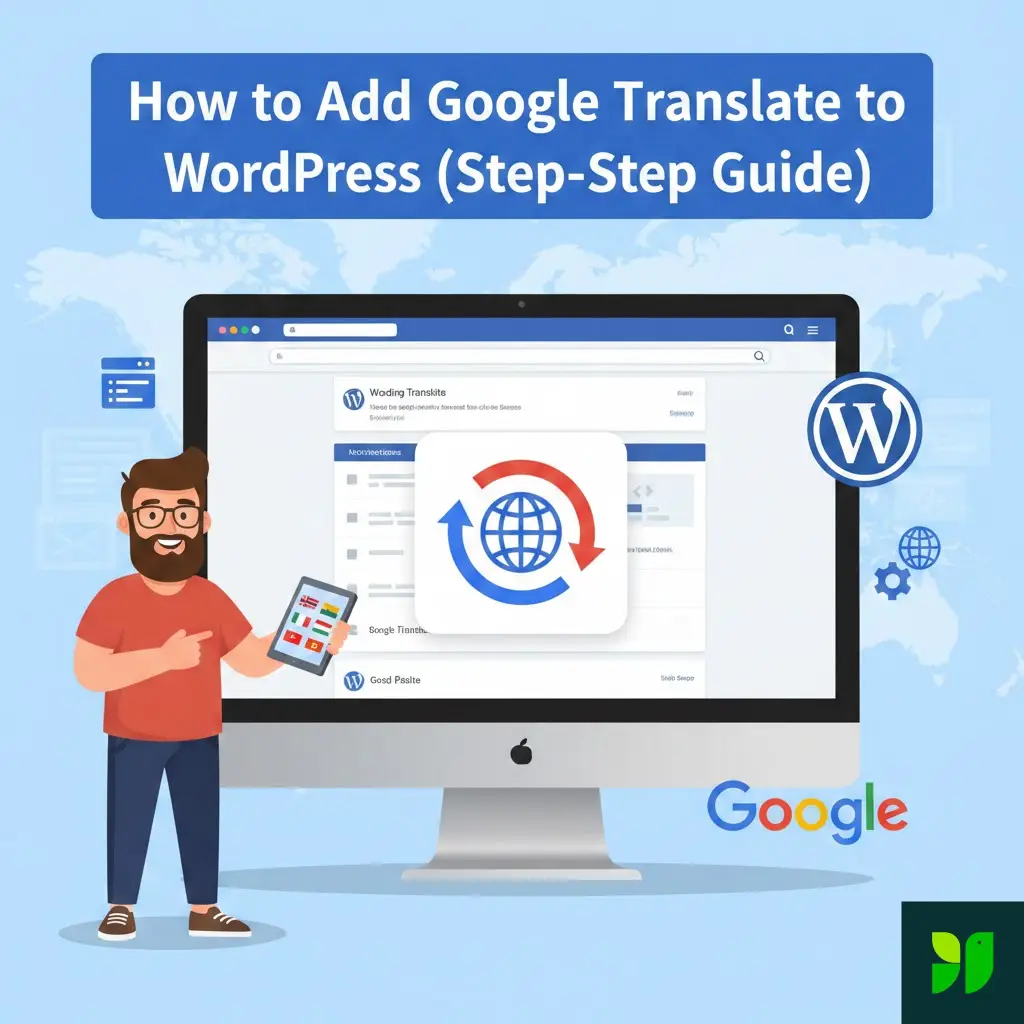
Adding Google Translate to your WordPress site is the fastest, most cost-effective way to break down language barriers. In this exhaustive guide, we’ll walk through the “why,” the “how,” and the “what’s next” of multilingual web design.
Why Google Translate is the Best Starting Point
Before we get into the installation, let’s look at the data. Machine learning and Neural Machine Translation (NMT) have advanced significantly. While human translation is still the “gold standard” for literature, Google Translate now offers 90% accuracy for most major language pairs.
The Benefits for Beginners:
Cost: Professional translation services cost between $0.05 and $0.20 per word. For a 50,000-word site, that’s $5,000 minimum. Google Translate offers a massive free tier.
Speed: You can translate 100+ pages in under 60 seconds.
Automation: As you post new blogs, Google Translate handles the updates automatically.
User Retention: A visitor is 70% more likely to stay on a site if it’s in their native tongue, even if the translation is “machine-generated.”
Method 2: The “TranslatePress” Way (Best for SEO)
There is a big difference between Client-Side and Server-Side translation.
GTranslate (Free version): Changes the text on the user’s screen. Google Search doesn’t index the translated pages.
TranslatePress: Creates actual pages (e.g.,
yoursite.com/es/). This allows you to rank in Google.es or Google.fr.
Step 1: Getting Started
Install and activate TranslatePress from the WordPress repository. Once active, go to Settings > TranslatePress.
Step 2: Choosing Your Languages
Add the languages you want to target. For example, if you see traffic coming from Mexico, add Spanish (Mexico).
Step 3: Enabling Google Translate API
To make the translation “automatic,” you need a Google Cloud API key.
Go to the Google Cloud Console.
Create a project and enable the Cloud Translation API.
Generate an API Key and paste it into the TranslatePress settings under the “Automatic Translation” tab.
Step 4: The Visual Editor
This is where TranslatePress beats every other plugin. You can open your homepage in the visual editor, click on a heading, and manually over-ride the Google Translation. If Google translates your brand name literally (which it often does), you can fix it here in seconds.
Method 3: Using Weglot (The Premium Experience)
If you are running a high-traffic business site or a WooCommerce store, Weglot is the “Tesla” of translation plugins. It’s not a traditional plugin; it’s a service that connects to your WordPress site.
Why choose Weglot over GTranslate?
Unmatched Speed: The translations happen on Weglot’s servers, so your site doesn’t slow down.
Media Translation: You can actually serve different images for different languages (e.g., an image with English text vs. Spanish text).
SEO Automation: It handles all your
hreflangtags automatically, telling Google exactly which version of the page to show to which user.
Comparison Table: Which Method is Right for You?
| Feature | GTranslate (Free) | TranslatePress | Weglot |
| Setup Time | 2 Minutes | 15 Minutes | 5 Minutes |
| SEO Friendly | No | Yes | Yes (Best) |
| Price | Free | Free / Paid | Paid (Monthly) |
| Customization | Low | High | Very High |
| Best For | Personal Blogs | Small Businesses | E-commerce / Enterprise |
Troubleshooting Common Issues
Adding a translator can sometimes “break” your site’s layout. Here is how to handle common beginner hurdles:
1. The Language Switcher is Hidden on Mobile
Most themes hide the sidebar on mobile. If your switcher is in a sidebar widget, mobile users won’t see it. Fix: Use the “Floating Widget” option or add it to the “Mobile Menu” specifically.
2. Broken Layouts (Text Expansion)
Did you know that German words are, on average, 30% longer than English words? If your “Buy Now” button is very tight, a German translation might break the button’s design. Fix: Use CSS to add “padding” to your buttons, or use TranslatePress to manually shorten the translated phrase.
3. Untranslated Text in Images
Google Translate only reads HTML text. It cannot read text that is “baked into” an image. Fix: Avoid using images with text. Use a WordPress “Cover” block where the text sits on top of the image as real HTML.
SEO Best Practices for Multilingual WordPress Sites
Simply installing a plugin isn’t enough to dominate global search. Follow these three rules:
1. Use Subdirectories or Subdomains
For SEO, yoursite.com/es/ is generally better than es.yoursite.com because the “link juice” of your main domain stays concentrated. TranslatePress and Weglot do this automatically.
2. The hreflang Tag
This is a small piece of code that tells Google: “Hey, this page is the Spanish version of the English page.” Without this, Google might flag your site for “duplicate content.” Premium plugins handle this for you.
3. Don’t Auto-Redirect Based on IP
Imagine a Spanish speaker visiting London. They open your site, and it forces them into the English version because their IP is in London. This is annoying. Always provide a manual switcher so the user has the final say.
Performance Checklist: Keep Your Site Fast
Every plugin adds “weight” to your site. To ensure Google Translate doesn’t kill your page speed:
Limit Languages: Don’t enable all 100+ languages. Pick the top 5 that actually visit your site.
Use Caching: Use a plugin like WP Rocket or LiteSpeed Cache. This ensures that once a page is translated, it’s “saved” and doesn’t need to be re-processed every time.
Optimize Your Flags: Use CSS flags instead of image-based flags to save on loading time.
Final Thoughts: The Future is Multilingual
Adding Google Translate to your WordPress site in 2026 is no longer an “extra”—it’s a necessity for growth.
If you are a total beginner, start with GTranslate. It’s free, it’s fast, and it works. As your traffic grows and you start caring about international SEO, transition to TranslatePress or Weglot.
The world is waiting to read your content. Don’t let a language barrier stand in the way.