In the fast-evolving landscape of digital publishing, the “lone wolf” blogger is becoming a rare species. By 2026, the standard for successful WordPress management has shifted from simple content creation to high-velocity digital operations. Whether you are a solo entrepreneur or managing a sprawling editorial team, the friction between creating content and publishing it remains the biggest bottleneck to growth.
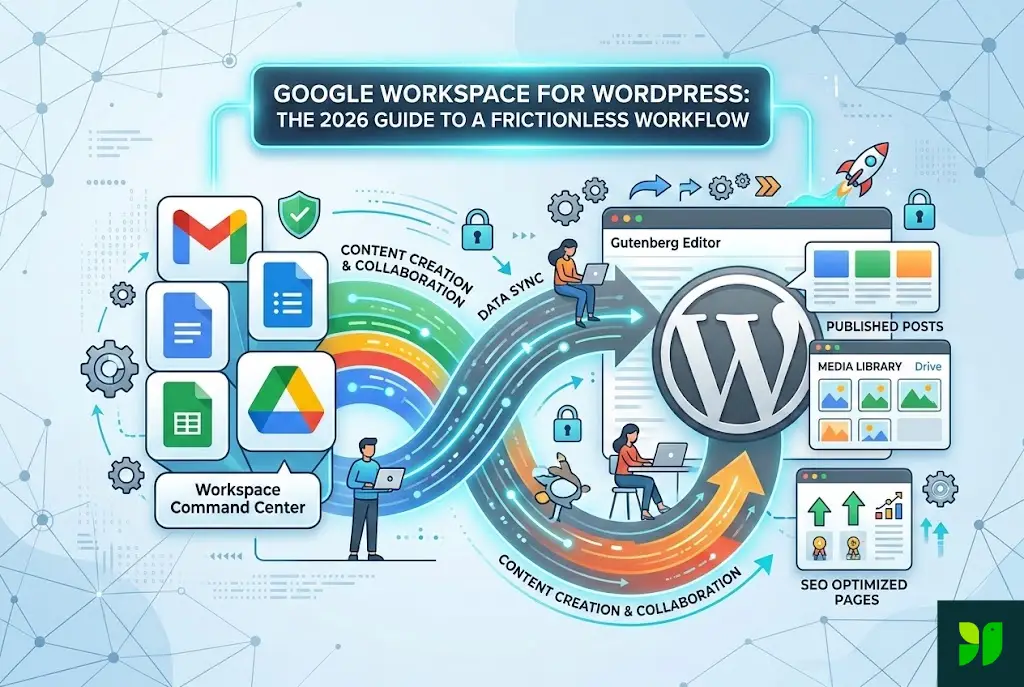
Enter Google Workspace. While many see it as just “email and docs,” in 2026, it has become the ultimate command center for WordPress power users. Integrating these two powerhouses isn’t just about convenience—it’s about building a frictionless workflow that saves hours of manual labor and eliminates technical debt.
The Strategy — Why Google Workspace is Your WordPress Backbone
Before diving into the “how,” we must understand the “why.” WordPress is an excellent Content Management System (CMS), but it is a poor collaborative environment. Its native editor, while improved, lacks the version control, real-time commenting, and offline capabilities of Google Docs.
The 2026 Advantage
In the current era of “Smarter Web,” your workflow needs to be three things: Decentralized, Automated, and Secure.
Security: Using Google’s OAuth for WordPress logins eliminates the need for weak passwords. With the rise of sophisticated brute-force AI attacks in 2025, a standard WordPress login is a liability.
Asset Management: Google Drive serves as a more organized, searchable staging area than the WordPress Media Library, which can often become a “black hole” for unsorted files.
Automation: Tools like AppSheet and Apps Script allow you to push data from Sheets to WordPress without touching a single line of PHP code.
The Cost of Friction
Friction is the hidden tax on your business. If your editor spends 20 minutes cleaning up HTML “gunk” from a copy-pasted Google Doc, and you publish 10 articles a week, you are losing over 170 hours a year to a task that should take zero seconds. In 2026, that’s not just inefficient—it’s a competitive disadvantage.
Content Orchestration — From Google Docs to Gutenberg
The “copy-paste” era is officially dead. In 2026, if you are manually moving text from a Doc to WordPress, you are losing money. Copy-pasting often brings over hidden CSS and non-standard HTML tags that bloat your site and destroy your SEO.
The Frictionless Method: Wordable vs. Custom API Connectors
To maintain a frictionless workflow, use tools that convert Google Docs directly into clean Gutenberg blocks.
Clean Formatting: Modern integration tools automatically convert H1-H4 tags, bold text, and bullet points into native WordPress blocks.
The Image Bridge: One of the biggest time-wasters is downloading images from a Doc, compressing them, and re-uploading them. By 2026, smart workflows use “Image Siphoning.” When you push a Doc to WordPress, the images are automatically pulled, sent through an optimizer like ShortPixel or Imagify, and placed in the Media Library with Alt Text derived from the Doc’s comments.
Collaborative Ghostwriting and Version Control
Use Google Docs’ “Suggestions” mode to run your editorial calendar. By the time a post reaches WordPress, it should be 100% polished.
Pro Tip: Never use WordPress Revisions for the heavy lifting of editing. It bloats your MySQL database. Keep the “messy” version history in Google Docs and keep your WordPress database lean and fast.
Mastering the “Sheet-to-Site” Pipeline
Google Sheets is no longer just a place for data; it’s a database for your WordPress site. This is where the 2026 guide gets technical but highly rewarding.
Bulk Content Management and Directory Sites
If you run an affiliate site, a real-time price comparison engine, or a directory, you shouldn’t be updating posts one by one.
Using plugins like WP All Import or WP Get API, you can sync a Google Sheet to your WordPress site.
The Workflow: Update a price in cell B12 of your “Product Master” Google Sheet.
The Result: A scheduled CRON job detects the change and updates 50 different blog posts where that product is mentioned.
The “Status-Driven” Editorial Calendar
Forget expensive project management software like Asana or Monday for simple editorial flows. A well-configured Google Sheet, integrated with Zapier or Make, can act as your hub:
Assign: Change a dropdown in Sheets to “Assigned.”
Notify: An automated email triggers via Gmail to the writer.
Draft: Once the writer changes the status to “Ready for Review,” a draft is automatically created in WordPress using the Google Doc link provided in the Sheet.
Google Drive — The “Pre-Media” Library
The WordPress Media Library is notorious for becoming a cluttered mess. The 2026 workflow dictates that Google Drive is where your high-resolution assets live, while WordPress only hosts optimized, “web-ready” versions.
Cloud Integration and Offloading
Use plugins like External Media or WP Media Folder to connect your Media Library directly to Google Drive. This allows you to:
Browse from Dashboard: View your organized Drive folders (Brand Assets, Stock Images, Infographics) directly from the “Add Media” screen in WordPress.
Zero Server Bloat: You can choose to “link” to files or import them. For large PDF lead magnets, hosting them on Drive (with proper permissions) saves your server bandwidth and disk space.
Unified Backup: If your site ever crashes, your media—the hardest thing to recover—is safely tucked away in your Workspace cloud.
Security — The Power of Google OAuth and SSO
Password fatigue is a major security risk. In 2026, the gold standard for WordPress security is Single Sign-On (SSO).
Why Passwords are Obsolete
By integrating Google Workspace’s OAuth, you can require all users (editors, authors, admins) to log in using their Google Workspace account. This provides three immediate benefits:
Identity Verification: You know exactly who is logging in.
Two-Factor Authentication (2FA): Benefit from Google’s world-class 2FA (and Physical Security Keys) without configuring it individually on WordPress.
Instant Offboarding: The “Termination Protocol.” When a freelancer or employee leaves, you don’t have to remember to delete their WordPress account, their FTP access, and their plugin access. You simply suspend their Google Workspace account, and they are instantly locked out of the entire ecosystem.
Automating SEO with Google Search Console & Sheets
SEO in 2026 is about data-driven pivots. You can now bridge the gap between Google Search Console (GSC) and your WordPress workflow using Google Sheets as a bridge.
The “Low-Hanging Fruit” Workflow
This is the exact strategy used by high-traffic news sites:
Export: Use the “Search Analytics for Sheets” add-on to pull GSC data into a Sheet every Monday.
Filter: Identify posts ranking in positions 11–20 (Page 2) with high impressions.
Optimize: These are your “Low-Hanging Fruit.” Use the Sheet to assign a “Content Refresh” to your team.
Index: Once the update is live in WordPress, use a Google Apps Script to ping Google’s Indexing API. This ensures your refreshed content is re-crawled within minutes, giving you an almost instant rankings boost.
Site Performance and the Workspace Edge
A frictionless workflow also applies to how your site loads for the user.
Google Fonts: In 2026, hosting fonts locally is a requirement for Core Web Vitals and GDPR compliance. Use your Workspace brand guide to select your fonts, but use a plugin like OMGF to host them on your own server.
Google Analytics 4 (GA4): Don’t just install the code. Use Google Site Kit to pull your Workspace data (Analytics, Search Console, AdSense, and PageSpeed Insights) into one “Frictionless Dashboard.” You should never have to leave WordPress to see if your business is growing.
2026 SEO Best Practices — The Human-First Approach
Google’s 2026 algorithms (following the “Experience” updates of previous years) are hyper-focused on EEAT (Experience, Expertise, Authoritativeness, and Trustworthiness). Your Google Workspace profile plays a hidden role here.
Author Schema and the Knowledge Graph
Ensure your WordPress “User Profiles” match your Google Workspace “People” data. When Google’s crawlers see a consistent identity—from your Workspace-verified email to your WordPress author box and your LinkedIn profile—it strengthens your “Author Entity” in the Knowledge Graph.
Google trusts people, not just websites. A verified Workspace account linked to your WordPress site is a strong signal of legitimacy.
The Role of AI (Gemini) in the Workflow
By 2026, AI is no longer a separate tool; it is baked into Workspace.
The Frictionless Brainstorm: Use Gemini in Google Sheets to generate 50 headline variations based on a single keyword.
The Human-Tone Audit: Use AI to draft the structure, but perform the “Human-Tone Audit” within Google Docs. Google’s algorithms are now adept at spotting the “synthetic” cadence of unedited AI text. The frictionless workflow allows for human oversight at the “Review” stage in Docs before the content ever touches the web.
Troubleshooting and Common Integration Pitfalls
While the 2026 workflow is streamlined, it isn’t foolproof. Here is how to avoid the “Friction Traps”:
API Limits: If you are syncing massive Google Sheets, you may hit API rate limits. Solution: Use “Batch Updates” instead of real-time syncing.
Permission Mismatches: Ensure your Google Drive folders are shared with the specific service account used by your WordPress plugins, or you’ll face “403 Forbidden” errors on your images.
Plugin Overload: Don’t install 10 different plugins for Google Workspace. Use a “Swiss Army Knife” tool like Uncanny Automator or Extensions for Google Workspace to handle multiple tasks with one plugin.
Conclusion: The Future is Integrated
The separation between “work tools” and “publishing tools” is a relic of the past. To succeed in the WordPress ecosystem of 2026, you must view Google Workspace as the engine and WordPress as the chassis.
By implementing a Sheet-to-Site pipeline, enforcing OAuth security, and utilizing Direct Doc-to-Block publishing, you eliminate the “busy work” that kills creative momentum. You aren’t just managing a website; you are running a high-performance digital machine.
The result? More time to focus on strategy, less time spent fighting your dashboard, and a content output that is as consistent as it is high-quality.
Your 2026 Frictionless Checklist
Clean House: Audit your WordPress Media Library and move archive assets to Google Drive.
Connect: Setup a Google Cloud Console project to enable OAuth for your team.
Automate: Link your Search Console to a Google Sheet to track “Low-Hanging Fruit” keywords.
Streamline: Install a Doc-to-WordPress converter to stop the copy-paste cycle.
Monitor: Use Google Site Kit to keep your “Eyes on the Prize” without leaving your site.