In the ever-evolving world of web design, speed, precision, and collaboration are the holy trinity. In 2025, designers and developers are relying more than ever on Figma for design creation and Elementor for website development. The combination offers unmatched creative freedom and efficiency — but only if you follow the right process.
Moving from a static design in Figma to a fully functional Elementor website is not just a matter of copying elements. If done incorrectly, you risk ending up with mismatched spacing, inconsistent typography, poor responsiveness, and slow load times.
This guide will walk you through a proven step-by-step workflow for taking your Figma design and turning it into a pixel-perfect, high-performance Elementor website — exactly how the pros do it in 2025.
Why Figma + Elementor is the Perfect Combo in 2025
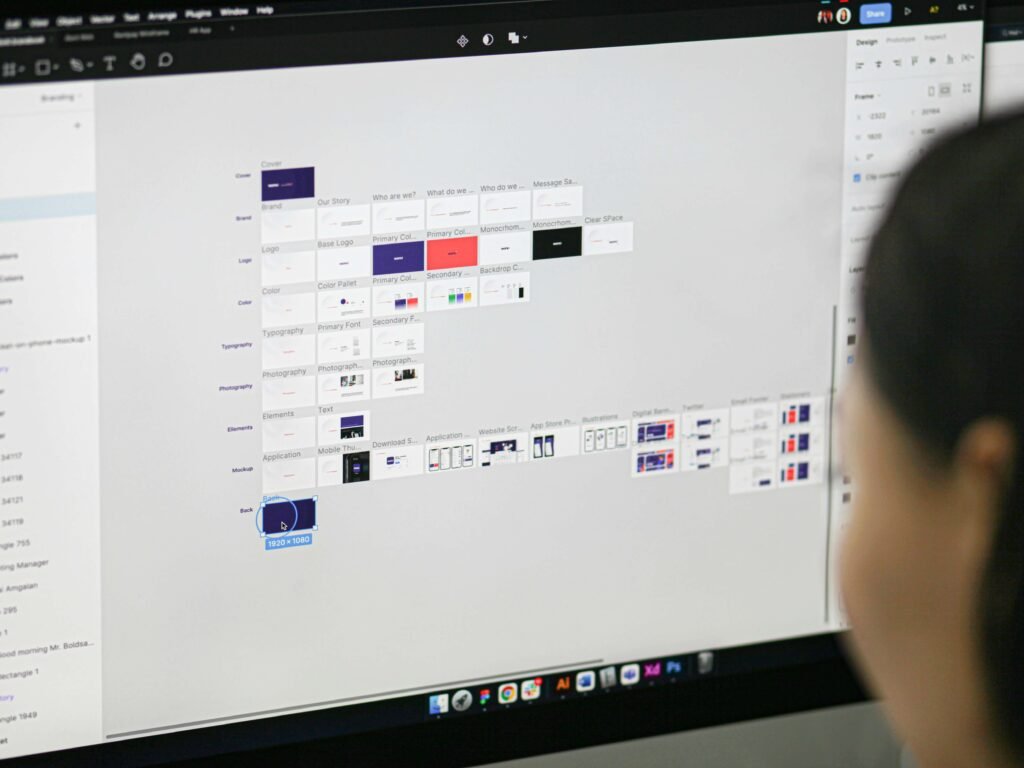
In the fast-paced digital world of 2025, web design demands both creativity and efficiency. Businesses want visually appealing websites that load quickly, adapt to different devices, and are easy to update without constant developer intervention. This is where Figma and Elementor shine as a perfect pairing.
Figma is a browser-based collaborative design tool that allows multiple people to work on the same design file in real time. Designers can create layouts, build interactive prototypes, and maintain consistent brand guidelines across pages. The ability to comment directly on the design means feedback is instant, and revisions happen quickly without lengthy email chains or file version confusion.
Elementor, on the other hand, is the most widely used WordPress page builder, allowing developers and non-developers to create custom websites visually. It offers complete control over layouts, spacing, colors, and typography while keeping the editing process intuitive. With Elementor Pro’s Theme Builder and global styles, you can translate a design from Figma into a fully functional website without constantly tweaking individual elements.
Benefits of combining them:
Fast approvals: Figma’s real-time collaboration speeds up client feedback.
Design consistency: Global styles in Elementor match Figma’s typography and colors exactly.
Creative flexibility: From static mockups to dynamic, functional websites, no compromises.
Pixel-perfect delivery: You can achieve 1:1 accuracy with the right workflow.
If you’re looking for design inspiration, check out our guide on 10 Modern Website Design Trends You Can Build with Elementor in 2025.
Preparing Your Figma File for Development
The quality of your final Elementor build depends heavily on how well your Figma file is organized before development starts.
Best practices:
Organize Layers and Frames
- Use clear names like Hero-Background, not Rectangle 23.
- Group related elements: Header, Hero, Features, Footer.
Use Auto Layout for Responsiveness – Auto Layout in Figma mimics how sections will respond in Elementor, making it easier to implement breakpoints later.
Create a Design System / Style Guide
- Set up typography rules: font families, sizes, weights, and line heights.
- Define a color palette with HEX codes.
- Include reusable button styles, icons, and spacing guidelines.
Export-Ready Assets
- Use SVG for icons, WebP for photos.
- Optimize images to avoid bloating your Elementor site.
💡 Pro Tip: Activate Figma’s Dev Mode so developers can inspect sizes, paddings, and CSS directly.
Setting Up Elementor Before You Start Building
Before importing anything, get Elementor ready for accurate implementation.
Install the Required Tools
- Elementor Pro – For Theme Builder, Global Styles, and dynamic widgets.
- Hello Elementor Theme – Lightweight base for maximum performance.
- Optional addons: Essential Addons or Premium Addons for extra widgets.
Configure Global Styles
- Set global fonts to match Figma’s typography.
- Add Figma color palette to Elementor’s global colors.
- Define heading, paragraph, and button styles globally.
Match Layout Settings
- Set container width (e.g., 1140px) to match Figma grid.
- Adjust responsive breakpoints according to the design.
Exporting Assets from Figma
How you export assets will make or break your Elementor build’s performance.
Images: Export as WebP for fast load times.
Icons/Logos: Export as SVG for crisp scaling.
Background Patterns: Use JPG/WebP at optimized sizes.
Keep images under 150KB when possible.
💡 Use the TinyImage Compressor plugin in Figma to reduce file sizes before downloading.
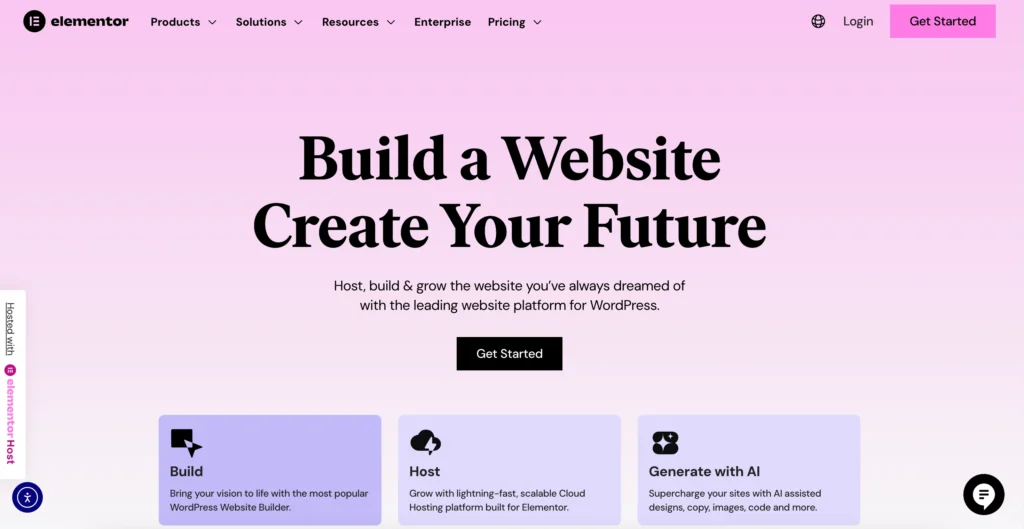
Building the Website in Elementor – Section by Section
Here’s the section-by-section approach for turning your Figma mockup into a live Elementor site:
Step 1: Header
- Use the Nav Menu widget.
- Match logo size, menu spacing, and font styling from Figma.
Step 2: Hero Section
- Set background image or gradient exactly as designed.
- Align text and buttons using padding/margin from Figma’s specs.
Step 3: Features/Services Section
- Use Elementor’s container layout.
- Add icons/images with equal sizes and hover effects.
Step 4: Testimonials Section
Choose between grid or slider format.
Match Figma’s typography hierarchy.
Step 5: Footer
Split into columns: navigation, contact, social links.
Match background color and spacing precisely.
Matching the Responsive Design from Figma
When you move a design from Figma into Elementor, getting the responsiveness right is one of the most important tasks. A design that looks perfect on desktop but falls apart on mobile will frustrate visitors and hurt SEO rankings. In 2025, mobile-first design is more critical than ever because, for many industries, over 60% of web traffic comes from mobile devices.
In Figma, most designers provide separate frames for desktop, tablet, and mobile views. It’s essential to carefully compare these when building in Elementor. For example, a desktop hero section might feature a wide background image with text aligned to the left, but on mobile, that same image might need to crop differently, with text centered for readability.
In Elementor, use the responsive editing mode to preview and adjust layouts for different breakpoints. Start with desktop, but don’t just shrink it down — actually redesign for mobile usability. For instance:
If you have three service columns on desktop, stack them vertically on mobile so they don’t become unreadable.
Reduce font sizes on mobile to maintain readability without overwhelming the screen.
Ensure all interactive elements, such as buttons and menus, have enough padding so they’re thumb-friendly — remember that touch targets should ideally be at least 48px high.
Elementor’s Custom Breakpoints feature allows you to match Figma’s mobile frames exactly.
Performance Optimization After Conversion
A beautiful site means nothing if it loads slowly.
Use container-based layouts for cleaner code.
Compress images with ShortPixel or Imagify.
Minify CSS/JS with a caching plugin (WP Rocket or LiteSpeed).
Test your Core Web Vitals with Google PageSpeed Insights.
Common Mistakes to Avoid
- Overusing Custom CSS: This complicates updates.
- Ignoring Global Styles: Leads to inconsistent design.
- Excessive Animations: Hurts performance.
- Old Design Trends: Keep it modern with fresh styles
Tools That Make Figma to Elementor Faster in 2025
Figma to HTML plugins – Quick asset extraction.
Happy Addons for Elementor – Advanced widget layouts.
Udesly Adapter – Convert Webflow/Figma concepts into WordPress-ready code.
Greenshift – Hybrid blocks + Elementor for speed.
Final Checklist Before Going Live
- Design matches Figma pixel-for-pixel.
- Fully responsive across all breakpoints.
- Images optimized and compressed.
- SEO titles, meta descriptions, and alt tags in place.
- Accessibility checks done.
- Speed tested with GTmetrix and Google PageSpeed.
Converting a Figma design into an Elementor website in 2025 is no longer guesswork — it’s a clear, repeatable process. By prepping your Figma file properly, setting up Elementor’s global styles, building section-by-section, and optimizing for performance, you’ll deliver a site that looks stunning, loads fast, and works on every device.
Pair this workflow with the right design inspiration, and you’ll have a winning formula. If you’re looking for fresh design ideas, don’t miss our 10 Modern Website Design Trends You Can Build with Elementor in 2025.