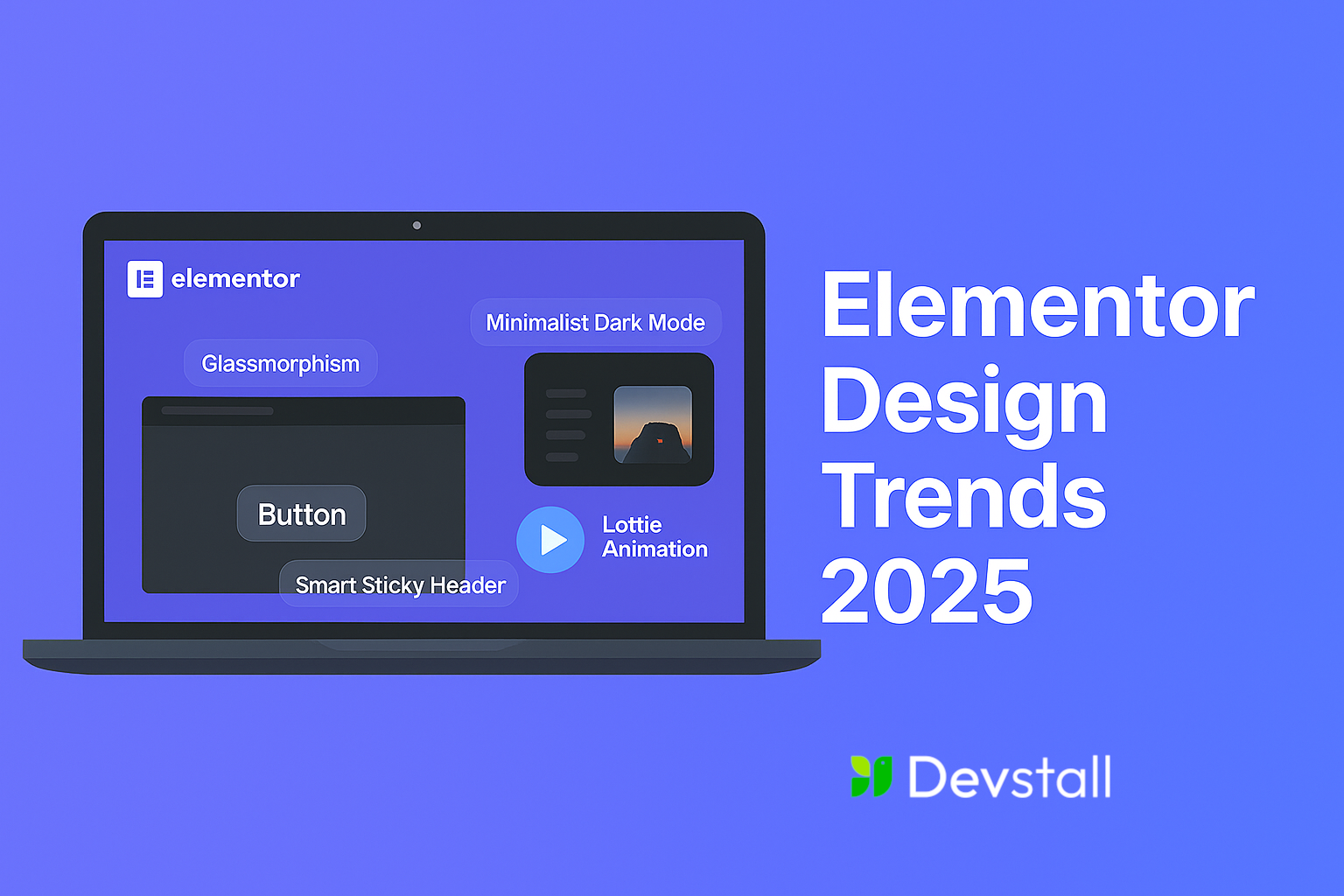
Web design is evolving rapidly, and in 2025, it’s all about sleek UI, fast performance, AI integration, and user-focused features. If you’re a web designer, business owner, or creative entrepreneur, you already know how powerful Elementor is. But are you truly leveraging its full potential?
This post walks you through 10 of the hottest design trends of 2025 that you can easily implement using Elementor—without writing a single line of code.
1. Glassmorphism UI with Elementor
What is it? A design technique that uses blurred backgrounds, transparency, and frosted-glass effects to create elegant, layered interfaces.
How to achieve in Elementor:
- Use background blur (CSS filter) on inner sections.
- Apply a transparent background using RGBA.
- Add subtle inner shadows and rounded corners for the glass feel.
Where to use: Hero sections, pricing tables, login popups, call-to-actions.
SEO Tip: Use alt tags for background images to keep it accessible.
2. Scroll-Based Animations and Motion Effects
Why it’s trending: Motion grabs attention. From subtle fades to dynamic scroll paths, users are more likely to engage with a site that feels alive.
Elementor Steps:
- Navigate to Motion Effects under Advanced tab.
- Choose entrance animation (e.g., fade in, zoom, slide).
- Enable scrolling effects like rotate, scale, or parallax.
Where to use: Blog posts, portfolios, services pages.
SEO Tip: Avoid overusing animations—they can hurt Core Web Vitals if not optimized.
3. AI-Powered Design Content & Structure
What’s new: AI isn’t just for content generation—it’s now integrated into Elementor Pro. You can use it to suggest layout changes, write copy, and generate code snippets.
Use cases:
- Quickly write SEO-friendly headlines.
- Get AI-generated meta descriptions for blog posts.
- Automatically fill testimonial, team, and service sections with dummy content.
Pro Tip: Use AI in combination with RankMath or Yoast for better content scoring.
4. Lottie Animations for Lightweight Motion
What are they? Lottie files are JSON-based animations that are smooth, scalable, and lighter than GIFs.
How to use in Elementor:
- Install the Lottie widget (Pro feature).
- Upload or embed animation from lottiefiles.com.
- Set triggers (scroll into view, hover, loop, etc.).
Where to use: Landing pages, onboarding sections, app mockups.
SEO Benefit: Faster load times than traditional videos or GIFs.
5. Minimalist Dark Mode Layouts
Why it works: Dark UI is easier on the eyes, preferred by many users, and looks ultra-modern.
How to build in Elementor:
- Use a black/dark background with high-contrast text.
- Create a dark mode toggle using 3rd-party plugins like WP Dark Mode.
- Use global colors to easily swap light/dark themes.
Where to use: Tech websites, portfolios, agencies.
UX Tip: Test readability on mobile before publishing.
6. Split-Screen Layouts for Hero Sections
Trend snapshot: Split screens divide the screen into two halves—perfect for storytelling or contrasting two ideas.
Elementor Setup:
- Use two columns in your section.
- Add padding and image overlays for balance.
- Insert call-to-actions or video on one side, text on the other.
Best for: Startups, agencies, product features.
Pro Tip: Don’t overload either side—minimalism works best.
7. Dynamic Content with ACF & Elementor Pro
What is it? Dynamic content means your site pulls live data from custom fields or databases and shows different content to users.
Setup:
- Install Advanced Custom Fields (ACF).
- Add custom fields to posts/pages.
- Use Elementor’s Dynamic Tags to pull field values into your templates.
Examples: Real estate listings, service directories, product catalogs.
SEO Benefit: More unique content across pages, boosting search visibility.
8. Smart Sticky Headers & Mini Cart Menus
Why users love it: Navigation that adapts and follows the user creates a frictionless experience.
Elementor Options:
- Enable Sticky Section in Motion Effects.
- Add shrink-on-scroll effect using custom CSS.
- Use popup builder for mini-cart panels.
Great for: eCommerce, blogs, SaaS landing pages.
Conversion Tip: Add a “Book Now” or “Buy Now” CTA in the sticky bar.
9. One-Page Layouts with Anchor Navigation
What is it? Single-page websites that scroll vertically through all the core content areas.
How to do it in Elementor:
- Assign IDs to each section.
- Add anchor links in the header or a sticky sidebar.
- Use smooth scroll effect with offset.
Best for: Events, personal portfolios, freelancers.
Speed Bonus: One-page sites are faster and easier to maintain.
10. Responsive Typography & Fluid Layouts
What’s the focus? Sites should automatically adjust font sizes, spacing, and content layout based on screen size.
Elementor Responsive Tips:
- Use em, rem, or % for font sizes.
- Set breakpoints for extra-wide screens and mobile.
- Use VW (viewport width) for advanced fluid typography.
Why it’s crucial: Google prioritizes mobile usability and readability in its ranking algorithm.
Real-World Use Cases: Elementor in Action
- Creative Agencies: Use split-screen layouts and scroll animations to highlight case studies and portfolios.
- eCommerce Brands: Sticky headers with Lottie-powered buttons boost conversions and simplify checkout flow.
- Event Organizers: One-page Elementor layouts streamline the user journey from awareness to registration.
- Personal Brands & Influencers: Responsive typography and mobile-first design help build credibility and SEO reach.
Pros and Cons of Using Elementor in 2025
Pros:
- No Coding Needed: Ideal for beginners and agencies alike.
- Live Drag-and-Drop Editor: Speeds up design workflow.
- Massive Addon Ecosystem: Includes free & premium widgets.
- Mobile Responsive Controls: Easily customize for all devices.
- Theme & Popup Builder: Customize every part of your WordPress site.
- Integrated AI Tools: Save time writing and optimizing content.
Cons:
- Performance Risk: Too many widgets/animations can bloat the site.
- Pro Features Locked: Many advanced tools require Elementor Pro.
- Plugin Conflicts: Some themes/plugins may break your layout.
- Learning Curve: Dynamic content and global styles need practice.
- Vendor Lock-In: Difficult to migrate to another builder later.
Bonus Tip: Elementor & Website Security in 2025
While you’re focused on beautiful design, security must not be overlooked. Many Elementor users add multiple addons and third-party integrations—each one can potentially introduce vulnerabilities if not managed properly.
Here’s how to stay secure while using Elementor in 2025:
- Only use trusted and actively maintained addons.
- Keep Elementor and WordPress core updated.
- Use a Web Application Firewall (WAF) and enable 2FA for logins.
- Run regular malware scans and monitor file changes.
Is Your WordPress Site Really Secure in 2025? Here’s How DevStall Secures Client Websites
FAQ: Elementor in 2025
Q: Is Elementor still good for SEO in 2025?
Yes—when optimized correctly. Use performance settings, keep plugins lean, and combine with RankMath.
Q: Best addons for animations?
Try Premium Addons, Motion.Page, and Happy Addons—they offer high-quality, lightweight effects.
Q: Can Elementor be used for complex websites?
Absolutely. With custom post types, dynamic fields, and integrations like JetEngine, Elementor can handle complex logic too.
Q: Gutenberg or Elementor?
Use Elementor for visual freedom. Gutenberg is better for minimal, blog-style sites.
Elementor continues to dominate in 2025 by staying at the forefront of design innovation. With AI features, responsive tools, and endless creative flexibility, it remains a top choice for building modern WordPress websites.
By embracing trends like glassmorphism, Lottie animations, dynamic content, and responsive design—you’re not just making a pretty website. You’re creating an experience users love.
Whether you’re designing for yourself or clients, Elementor allows you to build smarter, faster, and more creatively than ever before.